

For:Trial organization admins
Overview
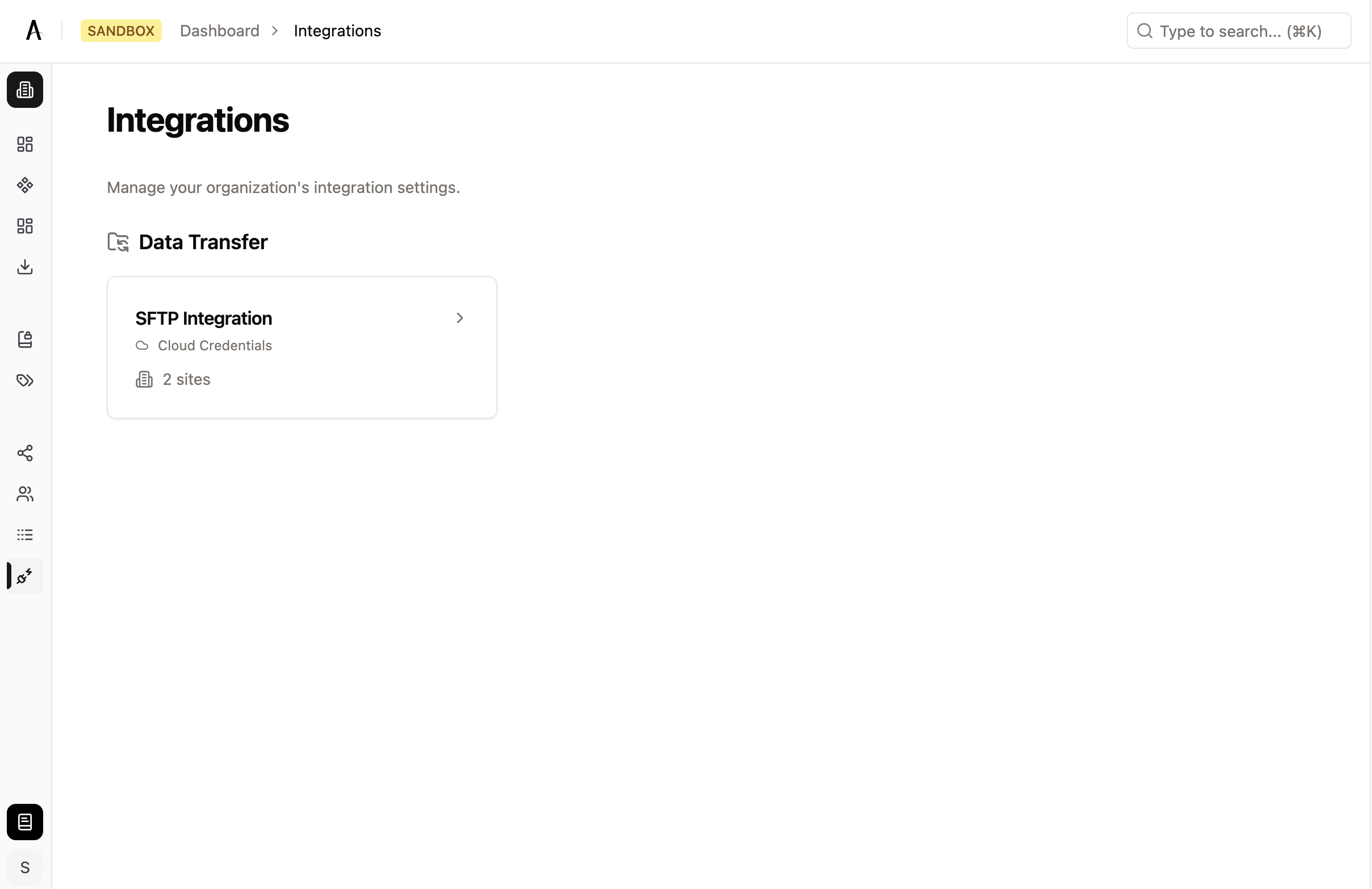
The Integrations page allows organization administrators to manage data transfer integrations, credentials, and user permissions. Integrations are accessed at Dashboard → Integrations. Integrations are configured by the trial organization that receives the data. Participating sites do not enter or manage transfer credentials. The IT team that operates your SFTP server should read SFTP server compatibility. Each integration card displays:- Integration name
- Credential type (Cloud Credentials or Local Config)
- Number of sites using the integration
What if I don’t see any integrations?
If no integrations appear, your organization hasn’t been set up with any data transfer integrations yet. Contact support at [email protected] to request integration setup.Credential Groups
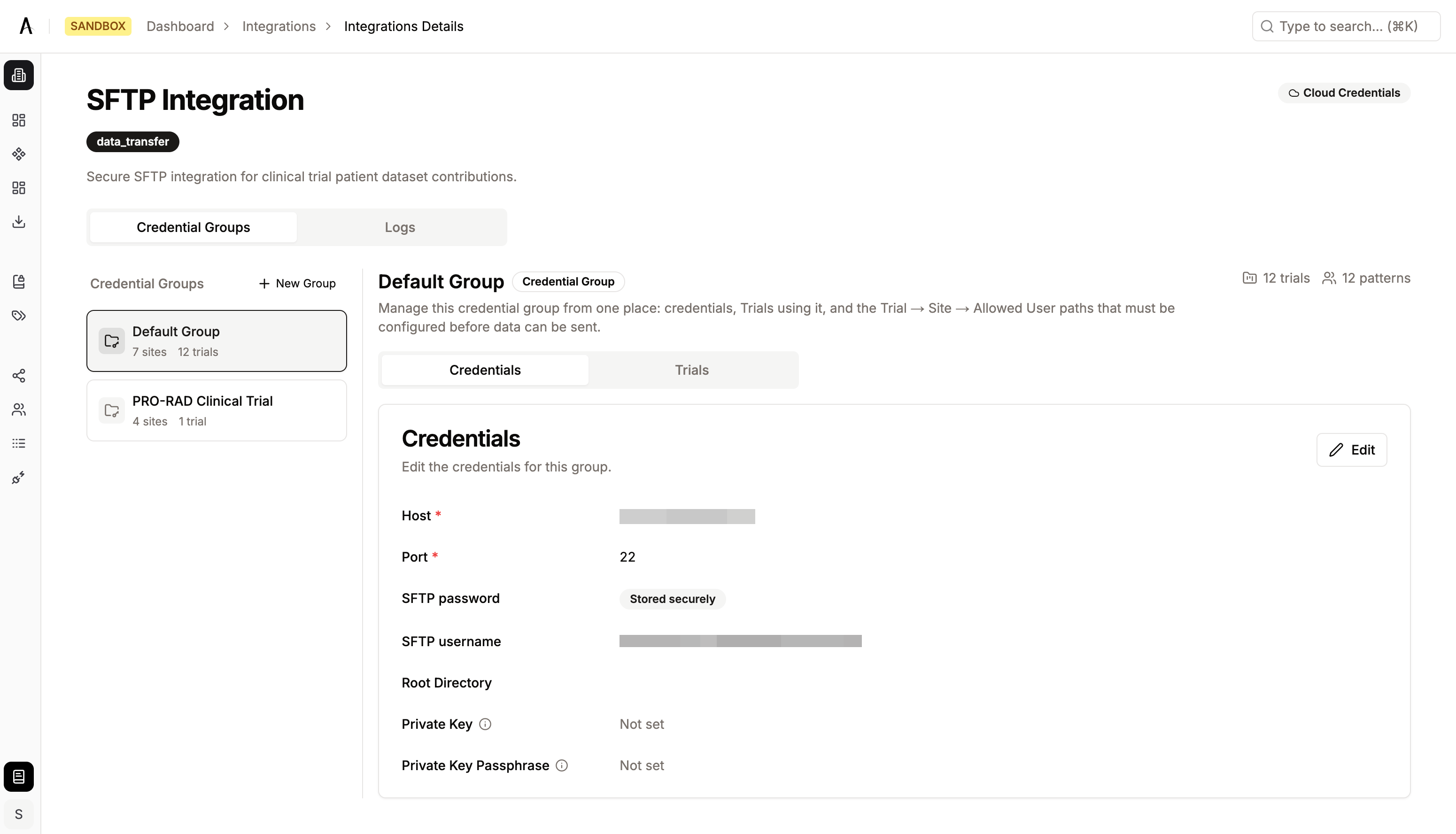
Credential groups allow you to manage different sets of credentials within the same integration. This is useful when:- Different sites require different connection endpoints or credentials
- You want to segregate credentials for security or organizational reasons
- Different trials need to route data through different systems
Key Features
- Multiple Groups: Create multiple credential groups per integration
- Independent Credentials: Each group has its own connection configuration
- Trial Linking: Link trials to a credential group to control which credentials are used for data transfers
- Per-Site User Access: Control which users at each site can access the integration, per trial
Creating a Credential Group
- Open an integration from the main Integrations page
- Navigate to the Credential Groups tab
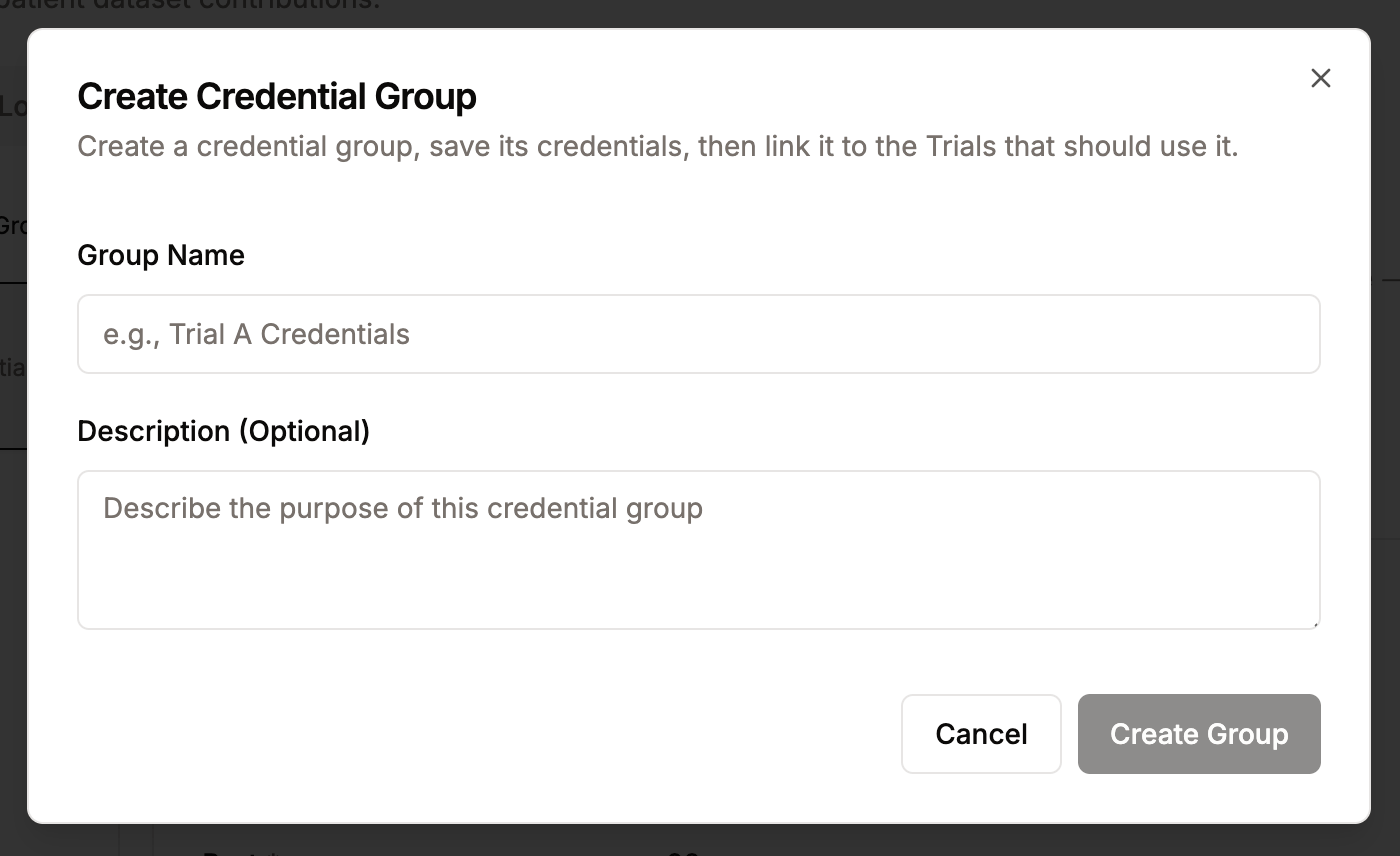
- Click Create New Group in the left sidebar
- Provide:
- Group Name: A descriptive name for the credential group
- Description (optional): Additional context about the group’s purpose
- Click Create to save the new group
Editing a Credential Group
- Select the credential group from the left sidebar
- Click the Edit button (pencil icon)
- Update the group name or description
- Click Save to apply changes
Deleting a Credential Group
- Select the credential group to delete
- Click the Delete button (trash icon)
- Confirm the deletion in the dialog
You must have at least one credential group per integration. The last group cannot be deleted.
Managing Credentials
Each credential group has a Credentials tab where you configure the connection details for that group.Viewing Current Credentials
- Select a credential group from the left sidebar
- The Credentials tab displays all configuration fields
- Sensitive fields (passwords, private keys) display a “Stored securely” badge — values are never shown in plain text
Updating Credentials
- Select a credential group
- Click Edit to enter edit mode
- Modify the credential fields as needed:
- Text fields: Enter alphanumeric values
- Number fields: Enter numeric values only
- Boolean fields: Toggle on/off
- Secret fields: Enter passwords (masked on input)
- File fields: Upload key files or certificates
- Click Save to publish changes
- Click Cancel to discard unsaved changes
How Credential Updates Propagate
When you update credentials:- Changes are automatically published to all sites assigned to the credential group
- Credentials are re-encrypted with each site’s encryption key before distribution
- The system tracks all credential updates in the Audit Log
SFTP Configuration
When an integration uses SFTP for data transfer, credential groups contain the following configuration fields:When both password and private key are provided, key-based authentication takes precedence.
Upload destination reachability
From AitriumOS 2.2.6, each installation checks whether it can reach its trials’ SFTP servers and reports the latest result to Aitrium. The check is a handshake only: it never signs in or transfers data. Site users can run it from Settings → Network → Upload destinations → Check now; see Upload connection troubleshooting. The results feed site readiness in Aitrium Web:- Organizations that own a site see, under Dashboard → Sites → the site → Readiness, an Upload destinations section listing each trial’s destination (host and port) with its latest check: Reachable, Blocked, Check failed, Not yet tested or Not yet reported. Installations older than AitriumOS 2.2.6 don’t report. The same tab offers an IT checklist download.
- Trial organizations see an Upload server status in each site’s readiness for the trial, showing whether the site’s upload connection is working or blocked.
Credential Encryption
All integration credentials are encrypted at rest using organization-level encryption keys managed through a Key Management Service (KMS).Owning Organization
Your organization owns the credential group and its encryption keys. Credentials are encrypted with your organization’s KMS key before storage — they are never stored in plaintext.External Participating Sites
When external provider sites are assigned to a credential group through trial linking:- Credentials are re-encrypted with site-level keys for secure distribution
- Each site receives only the credentials relevant to their assignment
- Credential transport uses session-derived encryption for additional security
Managing Trial Access
Integration permissions are managed at the trial level. Each credential group has a Trials tab where you link trials and control per-site user access.Permission Hierarchy
Permissions follow a trial-scoped hierarchy: Integration → Credential Group → Trial → Site → Users- An integration has one or more credential groups, each with its own connection configuration
- Each credential group can be linked to one or more trials
- Different trials can use different credential groups — even for the same site. This means a site can have separate credentials for each trial it participates in.
- At each site, you control which users have access — either all site users or a selected subset
Linking a Trial to a Credential Group
- Select a credential group from the left sidebar
- Navigate to the Trials tab
- Click Add Trial
- Search for and select the trial from the list
Trials already linked to this credential group are excluded from the search results. Credentials must be configured before you can add trials.
Per-Trial Credential Groups
Different trials can be linked to different credential groups, even when they share the same sites. This allows you to:- Route data for Trial A through one SFTP endpoint and Trial B through another
- Use separate credentials for different sponsors or data destinations
- Isolate trial data flows without creating duplicate sites
Trial Overview
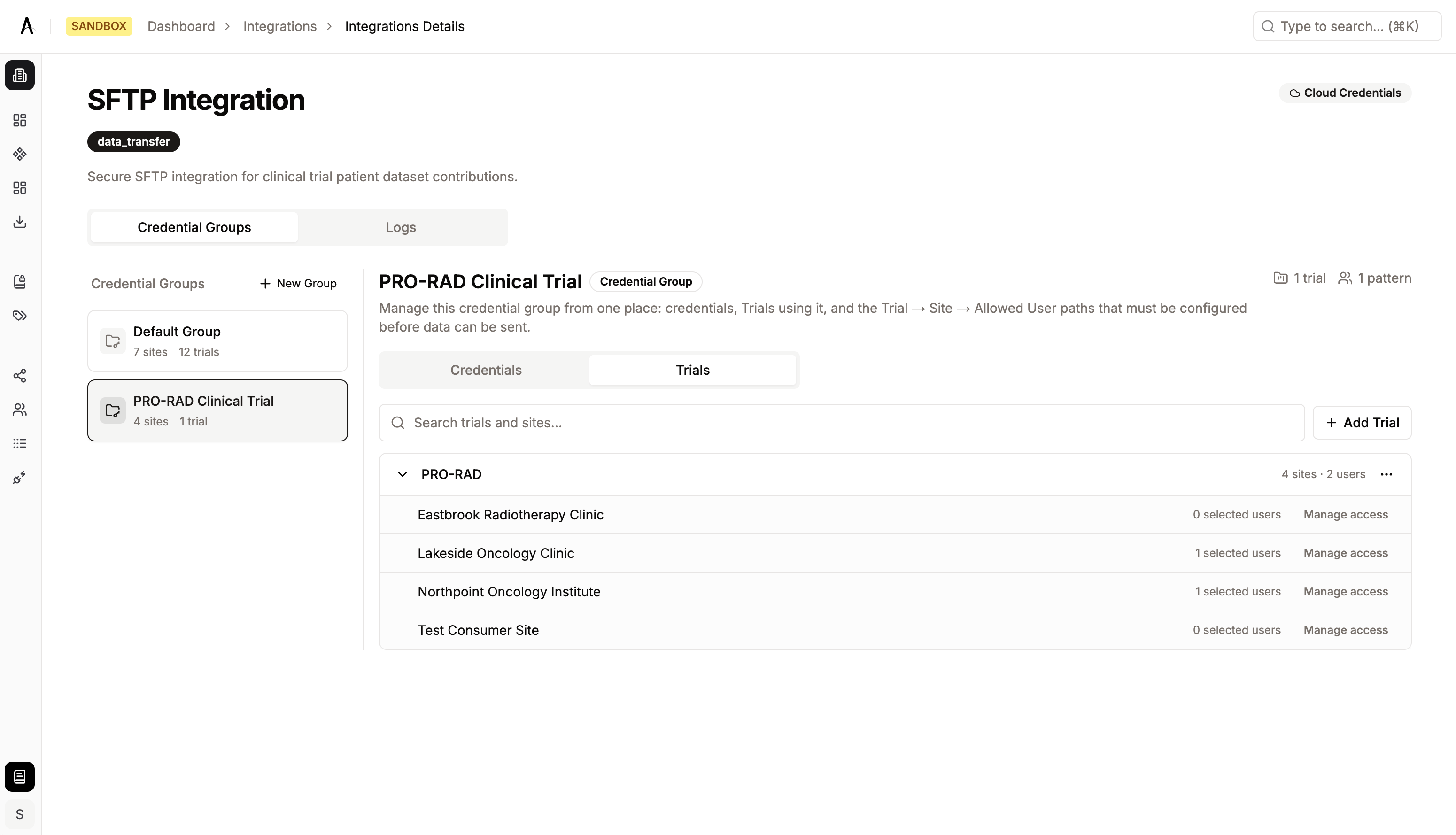
Once trials are linked, the Trials tab displays each trial as a collapsible row:- Trial name with site count and active/inactive status
- Readiness indicators:
- Green dot — Site is transfer-ready (credentials and users configured)
- Red dot — Site is blocked (missing credentials or user configuration)
- Summary: “N sites not ready” when blocked sites exist
- Header metrics: Number of trials linked and total access patterns configured
Managing Site Access
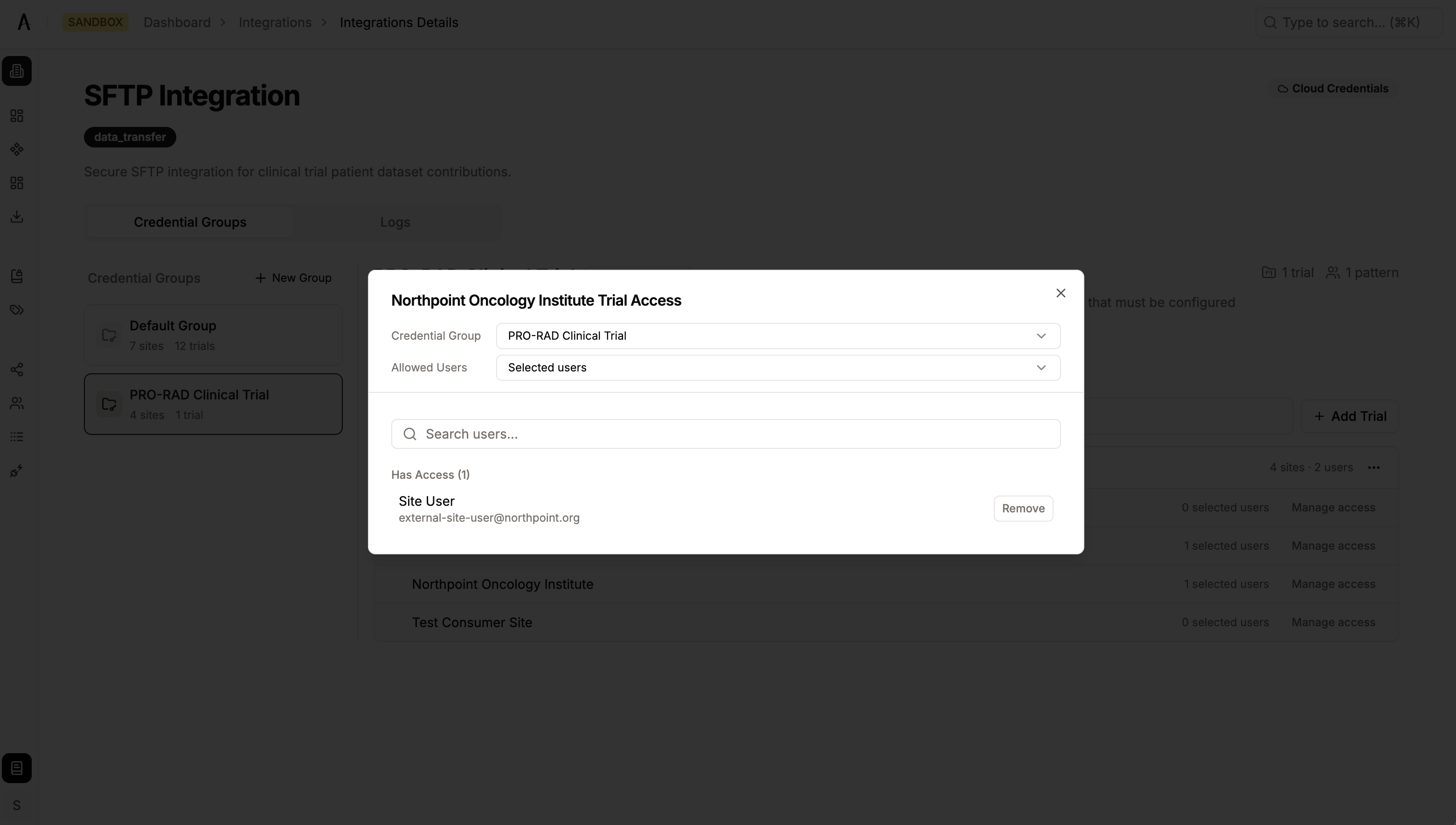
Click Manage access on any site within a trial to configure user permissions: Access Modes:
In “Selected users” mode:
- Search for users by name
- Click Add to grant a user access
- Click Remove to revoke a user’s access
- The drawer shows users split into “Has Access” and “No Access” sections
Removing a Trial
- Expand or hover over the trial in the Trials tab
- Click the dropdown menu on the trial header
- Select Remove Trial
- Confirm the removal
Managing Access from Trials
In addition to the Integrations page, admins can manage integration access directly from a trial’s detail page. This is useful when you’re working within a trial and want to configure site access without navigating to the Integrations section.- Navigate to Dashboard → Projects → [Trial Name]
- Switch to the Sites tab
- Each site row displays an Access column:
- Shows the number of users with access (e.g., “3 Users”)
- Or “Set Access” if no permissions are configured yet
- Click the access count or select Manage Access from the row’s dropdown menu
- The site access drawer opens — the same interface described in Managing Site Access above
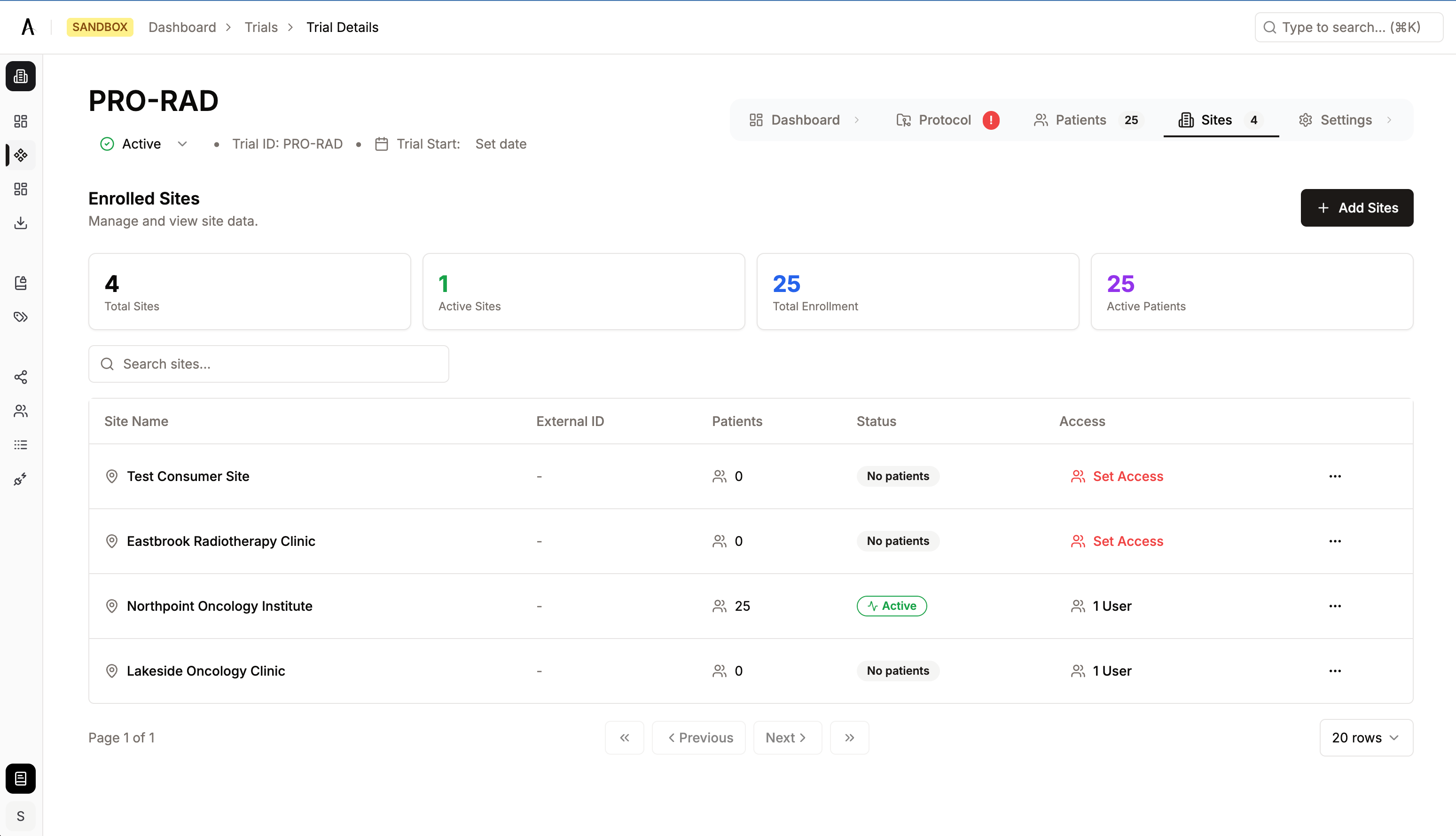
Both entry points — the Integrations page and the Trial sites tab — manage the same underlying permissions. Changes made in one location are immediately reflected in the other.
Integration Logs
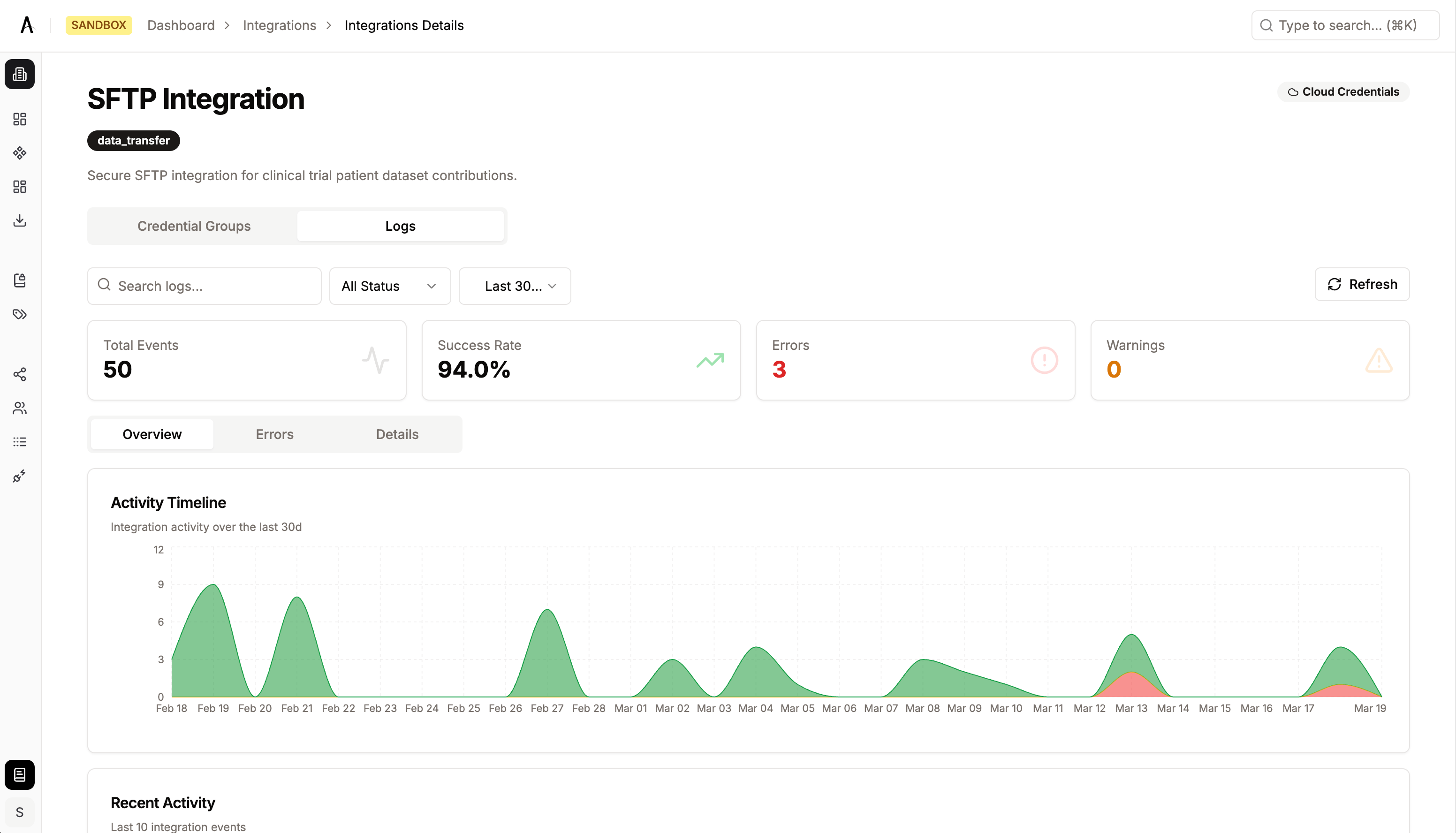
The Integration Logs tab provides execution logs showing when the integration has run and whether it succeeded or failed. This is useful for monitoring integration health and debugging issues.Log Analytics
The Overview tab provides a visual summary of integration execution history, including:- Time series chart of success, warning, and failure events
- Recent activity list (last 10 events)
- Summary metrics: total events, success rate, error count, warning count
- Authentication — credential or permission issues
- Connection — network or timeout failures
- Configuration — setup or path issues
- Transfer — upload/download failures
- Validation — format or schema errors
Execution Details
The Details tab shows a chronological table of all integration executions:
The table is searchable and sortable by timestamp (default: newest first). Use the time range filter (1 day, 7 days, 30 days) to narrow results.
Troubleshooting with Logs
- Identify when an integration last ran successfully
- Diagnose technical failures or connection issues
- Monitor integration performance and reliability
- Debug data transfer problems
Common Tasks
Granting a User Access to a Trial’s Integration
- Navigate to Integrations → Select the integration
- Select the Credential Group linked to the trial
- Go to the Trials tab and expand the trial
- Click Manage access on the relevant site
- Set the access mode to Selected users (if not already)
- Find and Add the user
Rotating Integration Credentials
- Navigate to Integrations → Select the integration
- Select the Credential Group to update
- Go to the Credentials tab and click Edit
- Update the credential fields with new values
- Click Save
- Verify the update in the Audit Logs page
Connecting a New Trial to a Credential Group
- Navigate to Integrations → Select the integration
- Select the Credential Group (or create a new one)
- Ensure credentials are configured on the Credentials tab
- Go to the Trials tab and click Add Trial
- Search for and select the trial
- Expand the trial and configure site access for each site
Restricting Access to Specific Users at a Site
- Navigate to the credential group’s Trials tab
- Expand the trial containing the site
- Click Manage access on the site
- Change the access mode from All site users to Selected users
- Add only the users who should have access
- Users not explicitly added will lose access
Troubleshooting
Problem: Can’t See Any Integrations
Solution: Your organization may not have integrations configured. Contact support at [email protected] to set up integrations.Problem: Can’t Update Credentials
Possible Causes:- Required fields are missing
- Invalid values entered (e.g., text in a number field)
- Insufficient permissions
Problem: Can’t Add a Trial to a Credential Group
Possible Causes:- Credentials have not been configured yet for the group
- The trial is already linked to this credential group
Problem: Site Shows as “Blocked” (Red Dot)
Possible Causes:- Credentials are missing or incomplete for the credential group
- No users have been granted access at the site
Problem: Credential Updates Not Taking Effect
Solution:- Verify the update was successful in the Audit Logs page
- Ensure the trial’s sites are assigned to the correct credential group
- Contact support if the issue persists
Problem: Integration Execution Failures
Solution:- Check the Logs tab on the integration detail page for error messages
- Review recent credential changes in Audit Logs that might have caused issues
- Verify network connectivity to the integration endpoint
- Contact support with the error details from the Integration Logs
Getting Help
If you need assistance with integration management:- Email: [email protected]
- Subject Line: Integration Management Support
- Include:
- Your organization name
- Integration name
- Description of the issue
- Screenshots (if applicable)