

For:Site users (with a checklist to forward to Site IT)
Overview
Welcome to Aitrium. We developed AitriumOS to streamline trial participation for contributors by making it easier to standardize, validate, and upload data to investigators. This document is intended to guide first-time users of AitriumOS through the initial set-up and installation.The Two Parts of Aitrium
You’ll use Aitrium in two places, with one sign-in for both:- Aitrium Web (app.aitriumos.com) — sign in from any browser to download AitriumOS, view your submissions, and manage users.
- AitriumOS desktop app — installed on your workstation; where you prepare and submit patient datasets. All submission work happens here.
Before You Begin
There are two quick checks before installing AitriumOS — one you can do yourself, and one for your site’s IT team. 1. Check that you can sign in- You should have received an Aitrium account invitation for your site. If you have not, contact your trial coordinator.
- Verify you can sign in at https://app.aitriumos.com. The desktop application uses this same sign-in.
For IT staff — requirements for AitriumOS (clinical trial data submission application):
- Installation — AitriumOS is a desktop application for Windows 10/11 (64-bit; 32-bit available for older releases) or macOS (Apple Silicon or Intel). The user needs it installed on their workstation.
- Disk space — during a submission, the application creates a temporary de-identified working copy of the patient imaging dataset, so the workstation needs transient free space roughly equal to the dataset being submitted. Working copies are deleted automatically when the submission completes or is cancelled (leftovers from interrupted sessions are removed the next time the application starts), so storage utilization does not accumulate over time.
- Web access — outbound HTTPS (port 443) from the workstation to
app.aitriumos.comand Aitrium service endpoints. - Data upload — for trials that transfer data over SFTP, outbound SFTP/SSH (TCP, usually port 22) from the workstation directly to the trial’s SFTP server. This connection cannot go through a web (HTTP) proxy, so outbound firewall rules must permit it. Allow the program
NewLeaf.exe(C:\Program Files\AitriumOS\for the MSI installer,%LOCALAPPDATA%\AitriumOS\for the standard installer), not just the port. The host and port are listed in AitriumOS under Settings → Network → Upload destinations. - Trial SFTP servers that restrict IP addresses — the trial’s server sees the site’s public egress IP address. If the trial organization only accepts approved addresses, send them that address.
How you’ll know: “Can’t reach Aitrium”
You do not need to test the network requirements yourself — AitriumOS checks its own connection every time it runs. If you can sign in and don’t see either of the warnings below, the workstation’s network is configured correctly and no IT involvement is needed. If the network does block Aitrium, the application tells you in two places:- Right after sign-in — a full-screen message:
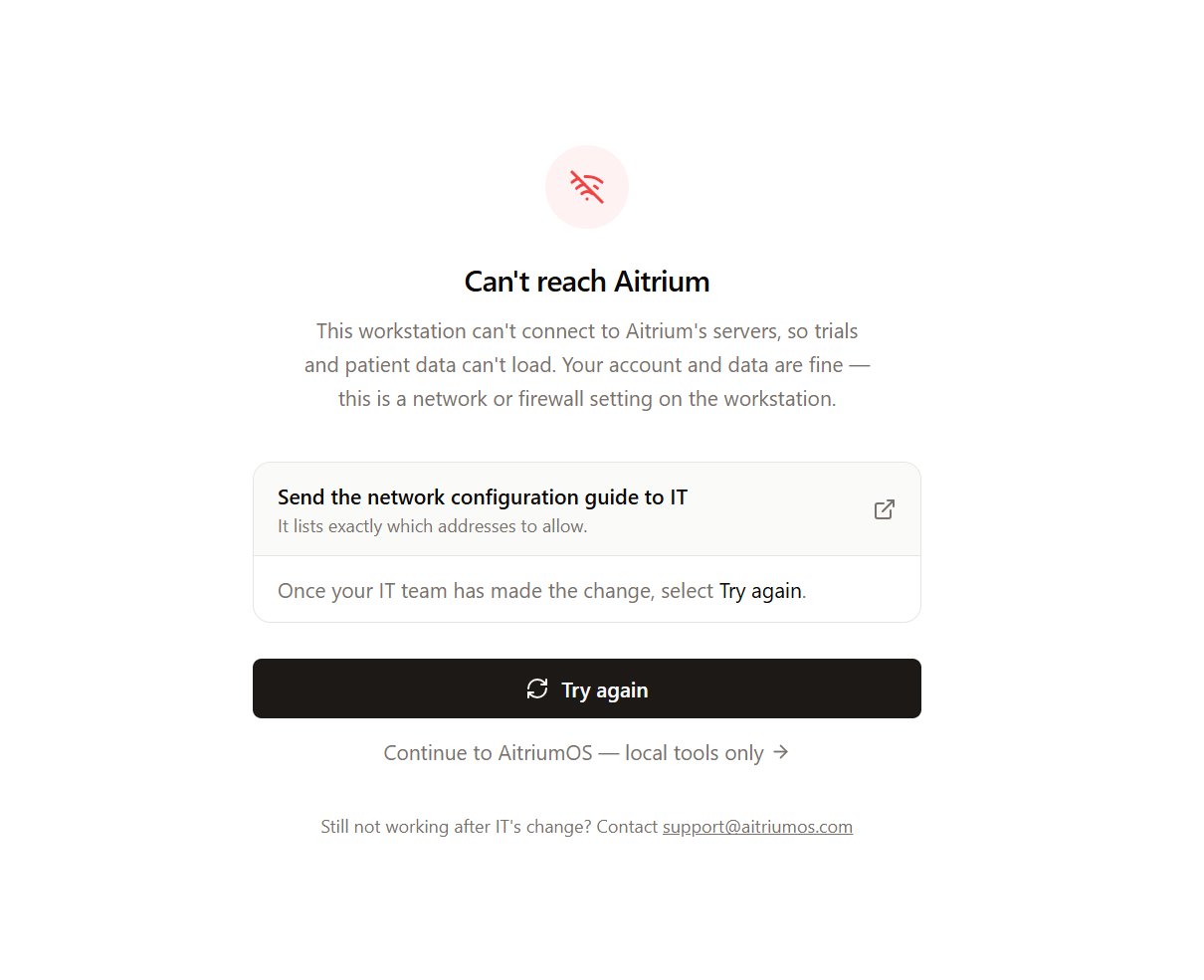
- While signed in — a red Connection issue indicator in the header; select it for details:
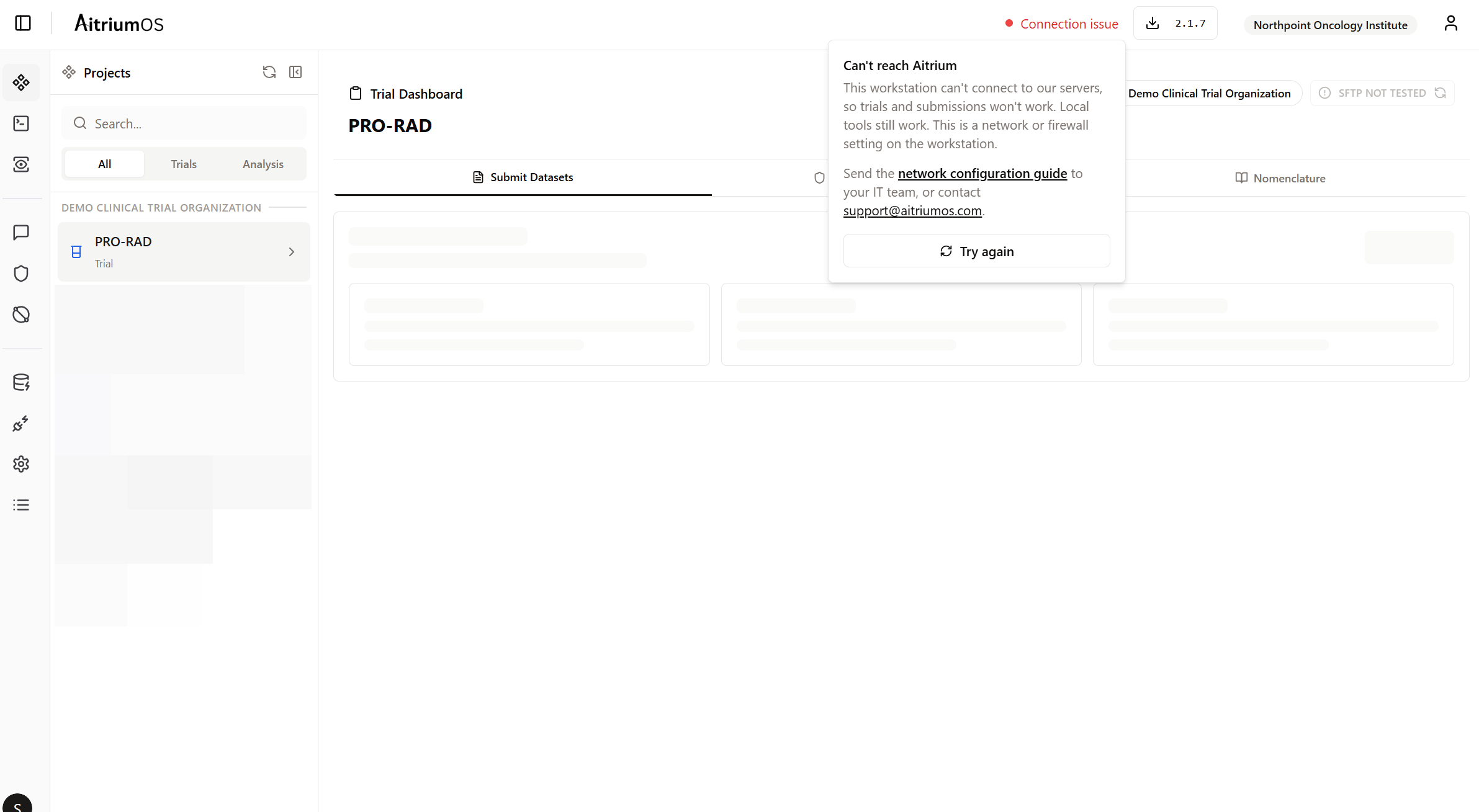
- Use the in-app link to send the network configuration guide to your IT team — it lists exactly which addresses to allow (the same information as the firewall allowlist). If your site routes traffic through a corporate proxy, IT should also see Corporate HTTP proxy.
- Once IT has made the change, select Try again.
- If the message persists after IT’s change, contact [email protected].
Sign in on the workstation well before your first submission is due — not the day data is due — so any network change has time to be made. The Data upload (SFTP) connection is separate from this check. To test it, open Settings → Network → Upload destinations and select Check now next to your trial’s server: a check confirms the server can be reached without signing in or sending data. If it doesn’t show Reachable, see Upload connection troubleshooting for what the message means and who needs to act.
Installing AitriumOS
- Log in to Aitrium: Access your account at https://app.aitriumos.com using your provided username and password.
-
Download the Application:
- Navigate to ‘Downloads’ on the lefthand navigation bar — open the page on the computer you want to install AitriumOS on, and it will recommend the right download for that computer
- For Windows, there are two installers that do the same thing but install differently:
- Standard installer — installs for your account only and does not need administrator rights. This is the right choice for almost everyone installing on their own workstation.
- MSI installer — installs machine-wide for all accounts and requires administrator rights. Only choose this if your IT department deploys software this way (they will usually know).
- For Mac: select based on your CPU (Apple Silicon or Intel)
- Check by clicking the Apple icon -> About This Mac
- Install the Application: Follow your operating system’s standard installation process.
Switching Windows installer types
If you want to move from one Windows installer type to the other — for example, switching to the Standard installer so future updates never need an administrator — switch cleanly rather than installing the second type alongside the first:- Check what is installed now: open Windows Settings → Installed apps and search for AitriumOS. If more than one AitriumOS entry is listed, you already have duplicate copies — remove all of them in the steps below, then install fresh.
- Uninstall the existing copy:
- An MSI copy was installed machine-wide, so removing it requires administrator rights one last time — if you don’t have them, ask IT to uninstall it. After that, the Standard installer installs and updates without ever needing an administrator again.
- A Standard copy uninstalls without administrator rights.
- Install the new type: return to the Downloads page and download the type you want. (The page will show a warning because your previous downloads were the other type — that warning exists to prevent accidental switches; when you’re switching on purpose, continue.)
- Your data is safe either way: submitted trial data lives in Aitrium, not on the workstation, and your local sign-in and settings are kept through an uninstall/reinstall.
Using AitriumOS
After installation, launch AitriumOS and log in with your username and password. If you see a “Can’t reach Aitrium” message instead of your trials, the workstation’s network is blocking the connection — see the section above.App Updates
If an update is available for AitriumOS, you will see the version button in the header turn blue: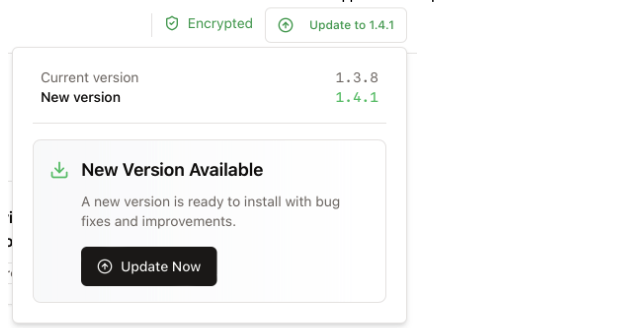
- Click “Update Now” to start downloading the version
- Once the download succeeds, the application will automatically close to apply the update
- After the update completes, the application will re-open.
Need Help?
If you run into problems during set-up:- Contact support at [email protected]
- Include your operating system version and, for connection issues, the error message shown in the app