

For:Organization admins at trial organizations and site organizations
Overview
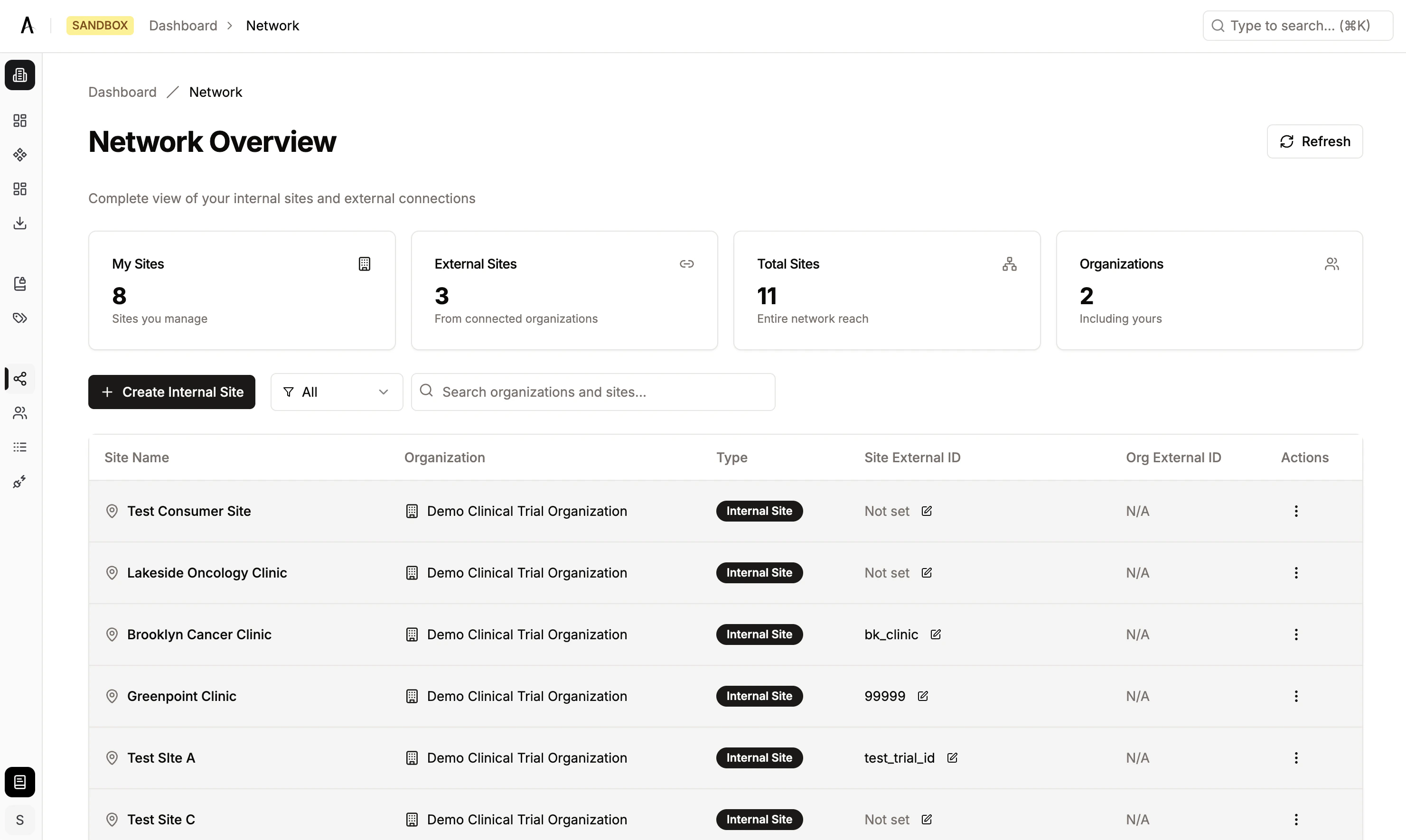
Network Management is accessed at Dashboard → Network. It provides a unified view of your organization’s sites, for trial organizations and site organizations alike:- Internal sites — Sites your organization creates and manages directly
- External sites — Sites created by Aitrium and connected to your organization for cross-organizational workflows (e.g., multi-site clinical trials)
Network Dashboard
The Network page displays statistics and a searchable site table.Statistics
- My Sites — Number of internal sites your organization manages
- External Sites — Number of connected external sites
- Total Sites — Combined count
- Organizations — Number of organizations in your network (including your own)
Site Table
Use the filter toggle (All / Internal / External) to narrow the view, or search by organization or site name.
Internal Sites
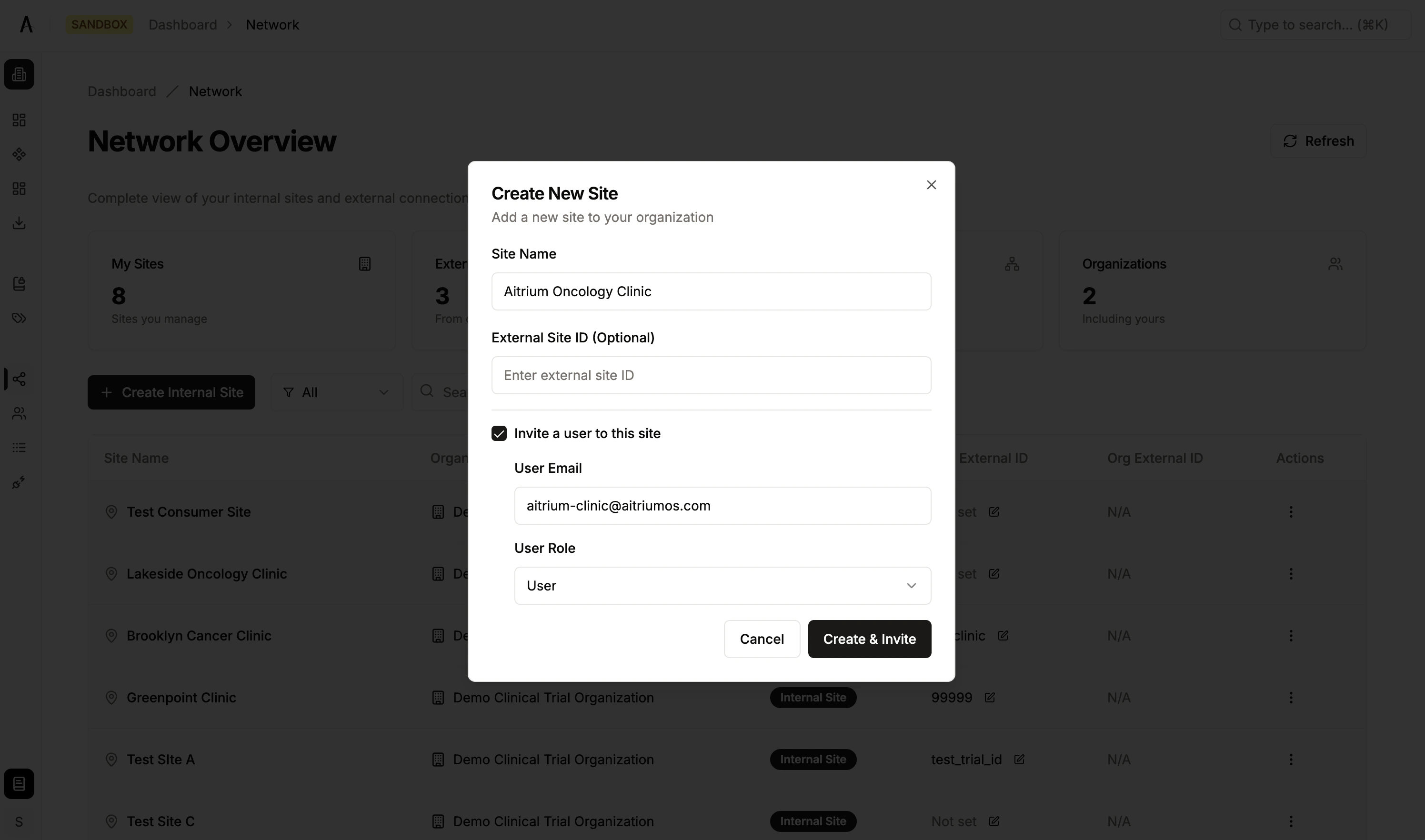
Creating an Internal Site
- Navigate to Dashboard → Network
- Click Create Site
- Enter the Site Name
- Optionally enter a Site External ID — this is used in file naming conventions for data transfers (see External IDs below)
- Optionally check Invite a user to this site to send an invitation during site creation:
- Enter the user’s email address
- Select a role
- Click Create
External Sites
How External Sites Work
External sites are created by Aitrium and connected to your organization to enable cross-organizational data workflows. You cannot create external sites yourself — they appear in your network automatically once Aitrium connects them to your organization. External sites display:- The site name and the external organization they belong to
- An External badge to distinguish them from your internal sites
- External ID fields for integration mapping
External IDs
Purpose
External IDs map your internal site and organization identifiers to the naming conventions expected by integration partners. When a Site External ID is set, it is used in the file naming convention for transferred patient datasets — ensuring files are named according to the receiving system’s expectations.Setting a Site External ID
- Find the site in the Network table
- Click the Site External ID cell to enter inline edit mode
- Enter the external identifier
- Click the checkmark (✓) to confirm, or X to cancel
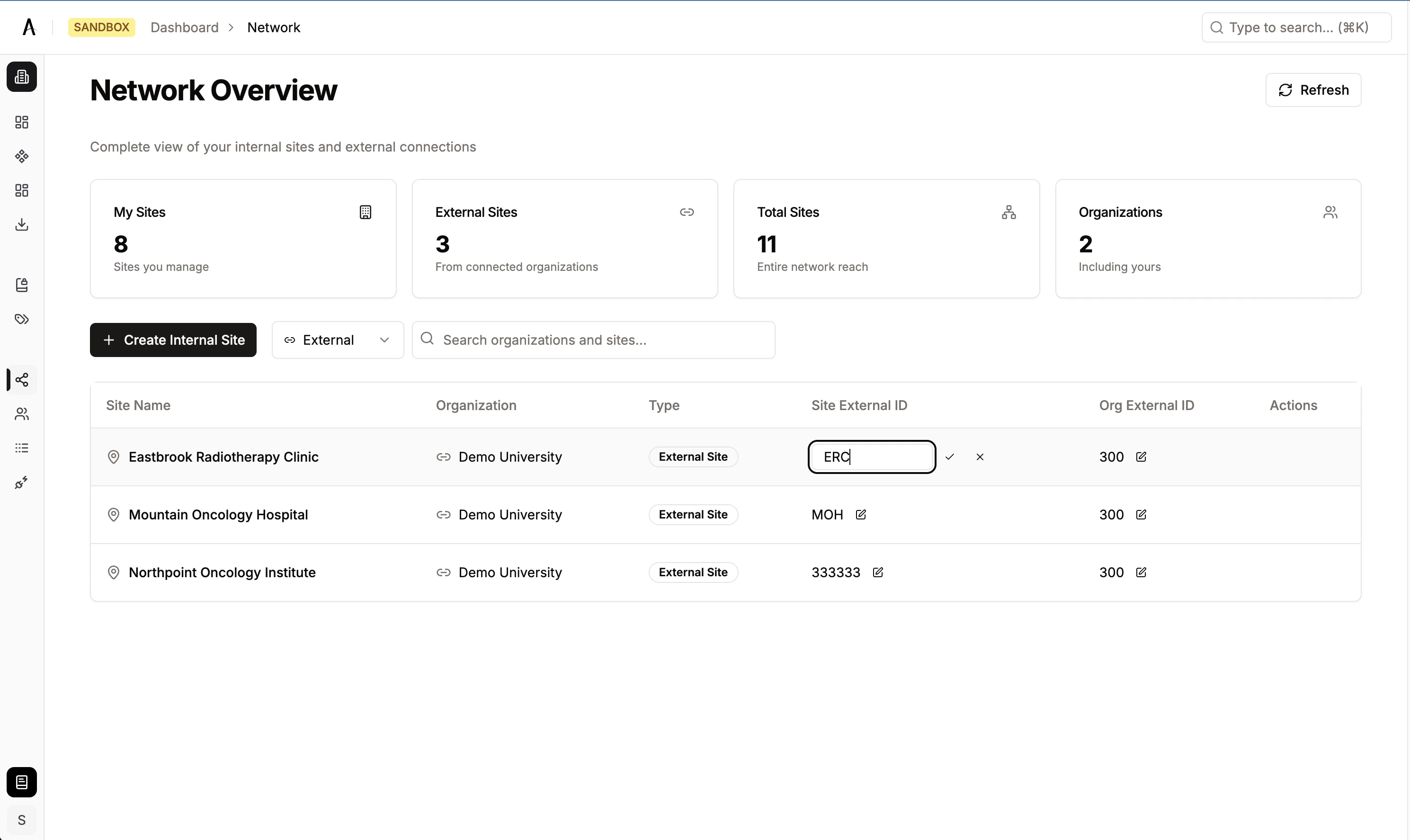
Org External IDs follow the same inline editing pattern and are available on external organization entries. They map your organization’s identity to the external system’s naming convention.