

For:Organization admins at trial organizations and site organizations
Overview
User Management is accessed at Dashboard → Users. Admins can invite new users, manage existing user roles and site assignments, and track invitation status. This works the same way for trial organizations and site organizations: each organization’s admins manage only their own organization’s users. Aitrium has two customer-facing roles:- Admin — Organization-wide access to all features, including administration
- User — Access scoped to an assigned site
Users Dashboard
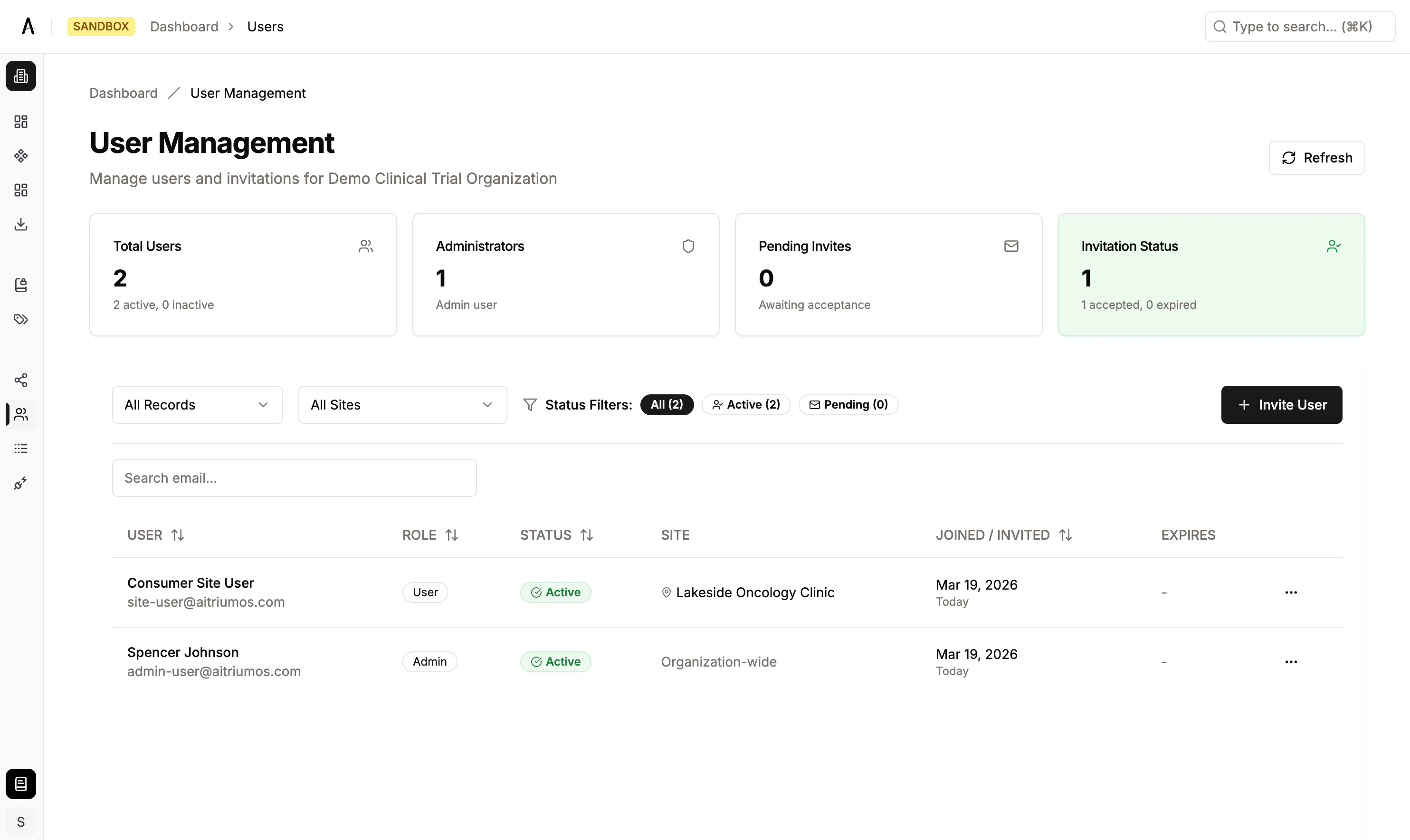
The Users page provides an at-a-glance summary of your organization’s user base along with a detailed table for management.Statistics
- Total Users — Count of active and inactive users
- Administrators — Number of users with the Admin role
- Pending Invitations — Invitations awaiting acceptance
- Invitation Status — Breakdown of accepted vs. expired invitations
User Table
The table displays all users and invitations with the following columns:
You can toggle between a unified view (users and invitations in a single list) or a tabbed view (separate tabs for each). Use the status and site filters to narrow the list, or search by name or email.
Inviting Users
Invitations are always limited to your own organization. Users invited with the User role can only access data and workflows for their assigned site.
Inviting an Admin User
- Navigate to Dashboard → Users
- Click Invite User
- Enter the user’s email address
- Select the Admin role
- Click Send Invitation
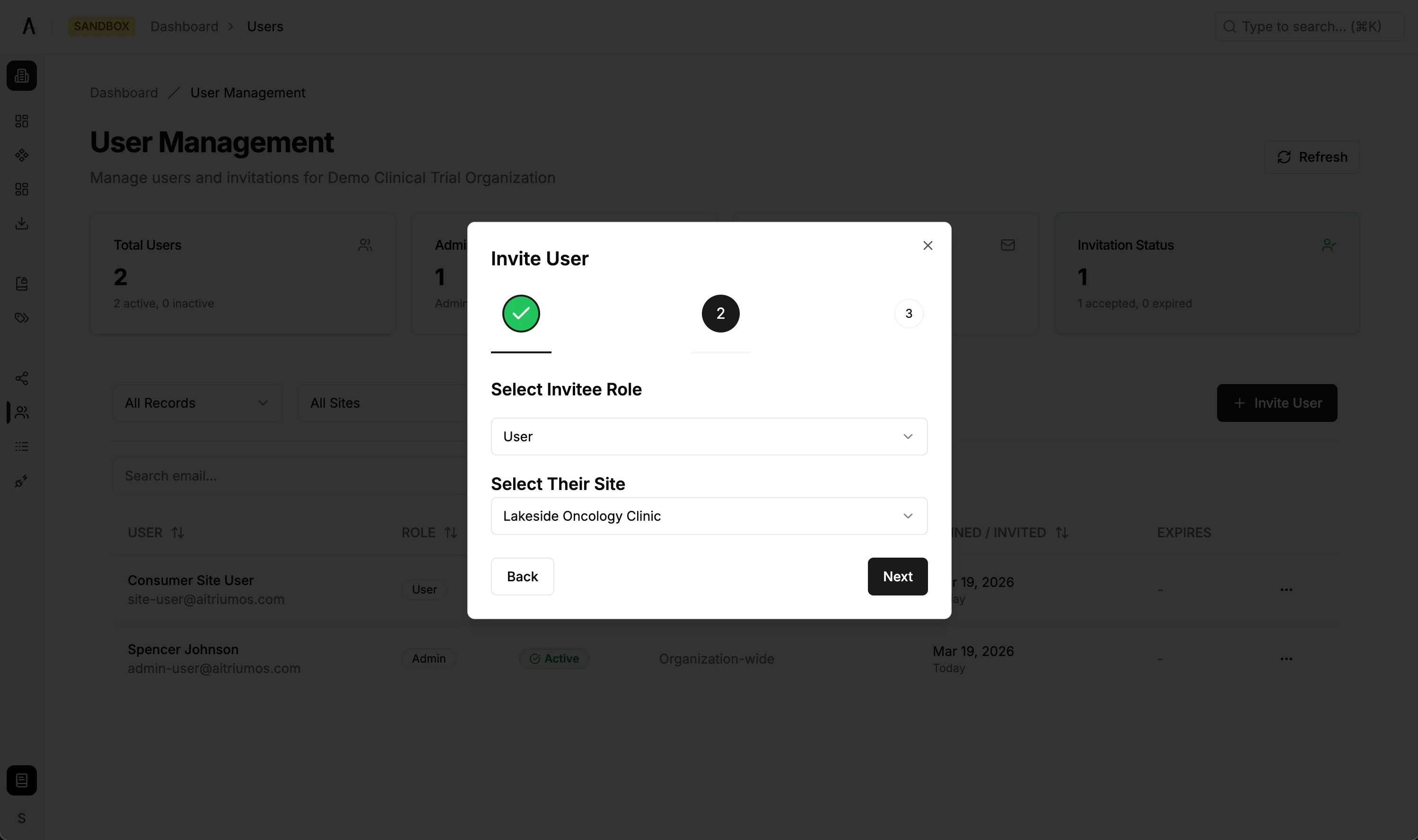
Inviting a User with Site Assignment
- Navigate to Dashboard → Users
- Click Invite User
- Enter the user’s email address
- Select the User role
- Select a Site from the dropdown
- Click Send Invitation
Invitation Lifecycle
- Invitations are valid for 7 days from creation
- Status flow: Pending → Accepted (user completes registration) or Expired (7 days elapsed)
- Only one active invitation can exist per email address
- If a previously deactivated user is re-invited, the system handles it as a reactivation — their existing account is restored with the new role and site assignment
Managing Invitations
Refreshing an Invitation
Refreshing extends the invitation expiration by 7 days from the current time:- Find the pending or expired invitation in the Users table
- Click the actions menu (⋮) → Resend Invitation
- The invitation link is refreshed and re-sent to the user’s email
Revoking an Invitation
Revoking permanently removes a pending invitation:- Find the invitation in the Users table
- Click the actions menu (⋮) → Remove Invitation
- Confirm the removal
Revoking an invitation permanently deletes it. If you need to re-invite the user, you’ll need to create a new invitation.
Managing Existing Users
Changing a User’s Role
- Find the user in the Users table
- Click the actions menu (⋮) → Edit User
- Change the Role (Admin or User)
- If changing to User, select a site assignment
- Save changes
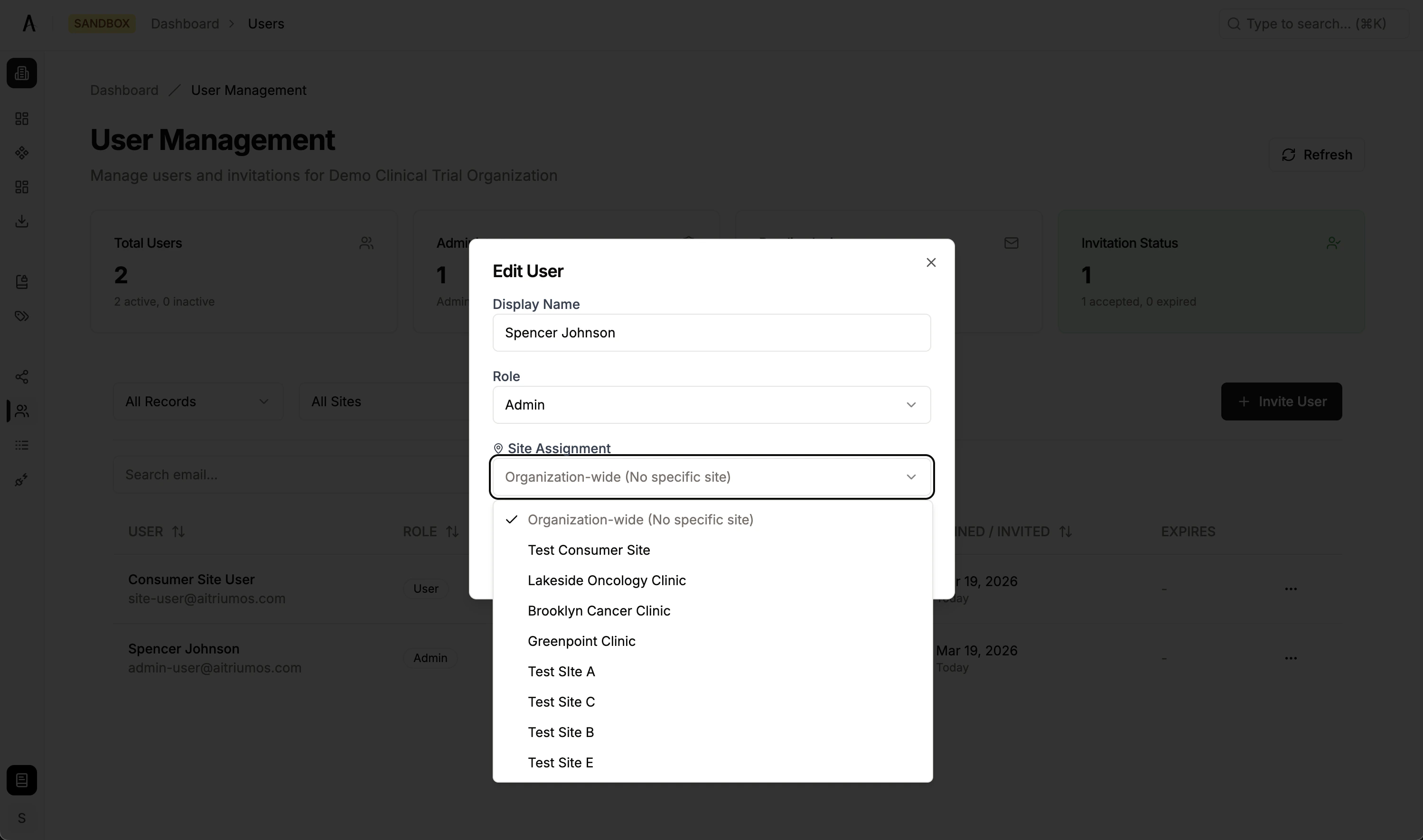
Adding or Changing User Sites
- Find the user in the Users table
- Click the actions menu (⋮) → Edit User
- Update the Site assignment
- Save changes
Admin-role users have organization-wide access and are not restricted to specific sites. Site assignment only applies to the User role.
Deactivating a User
- Find the user in the Users table
- Click the actions menu (⋮) → Deactivate User
- Confirm deactivation