

For:Site users
Overview
This guide is for EORTC trials. For all other trials, follow RTQA Data Submission instead.
Step-by-Step Walkthrough
Adding a Patient
Before you can submit data for a patient, the patient must be added to the trial:- Open the trial in AitriumOS and select Add Patient.
- Enter the patient’s Trial Patient ID exactly as assigned by the trial.
- The patient appears in the Submit a Patient Dataset table, ready for submission.
Submission Process
The clinical trial data submission protocol consists of five key steps:1. Trial Dataset Validation
The first step validates your patient dataset against a clinical trial’s specific dataset file requirements:- Verifies presence of required patient data files
- Identifies missing or invalid data elements
- Validates DICOM headers against a trial’s requirements
- Provides detailed feedback for any validation issues
2. Structure Standardization
For trials requiring RT Structure Set file submission, this step:- Labels organ and target volumes according to the trial specific nomenclature
- Maps local naming conventions to the trial specific nomenclature
- Ensures adherence to trial-specific structure requirements
3. DICOM Metadata Validation & De-identification
This critical step protects patient privacy by:- Analyzing all DICOM headers for potentially identifying information.
- Applying the clinical trial’s de-identification policy to the DICOM file metadata.
Aitrium currently does not remove burned-in pixels from DICOM image data or de-identify non-DICOM files. Please ensure images and other supplementary files are anonymized prior to submission.
4. Final Review
Before submission, the user can:- Review dataset completeness.
- Approve data for submission.
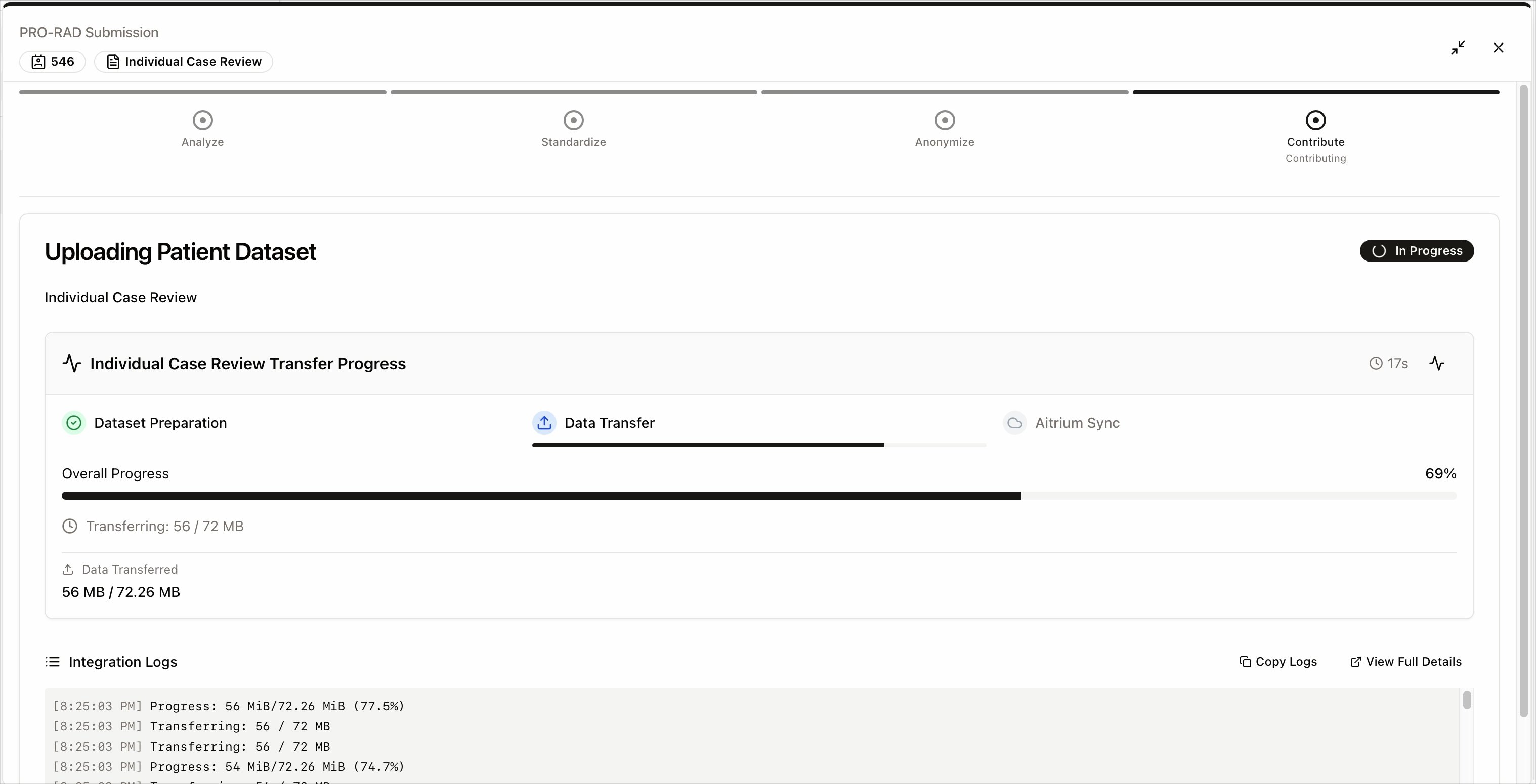
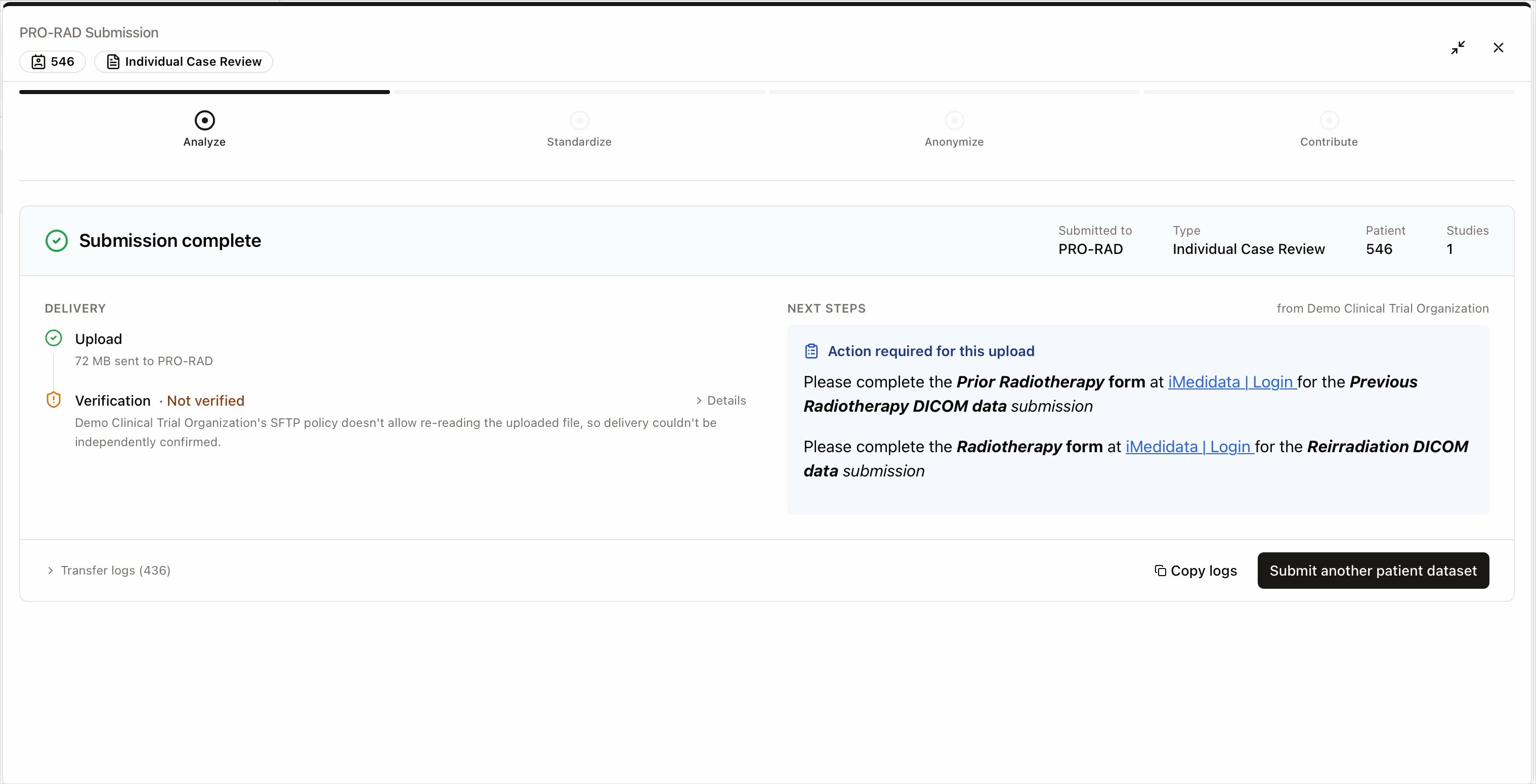
5. Upload to Trial
The final step packages the approved dataset as a zip file named according to the clinical trial requirements, then completes the submission in two parts:- Data Transfer — the dataset is uploaded to the trial’s data destination, with a progress bar tracking the transfer.
- Aitrium Sync — the submission is registered with Aitrium, which records it for the trial and notifies the trial team.
Monitoring Submission Status
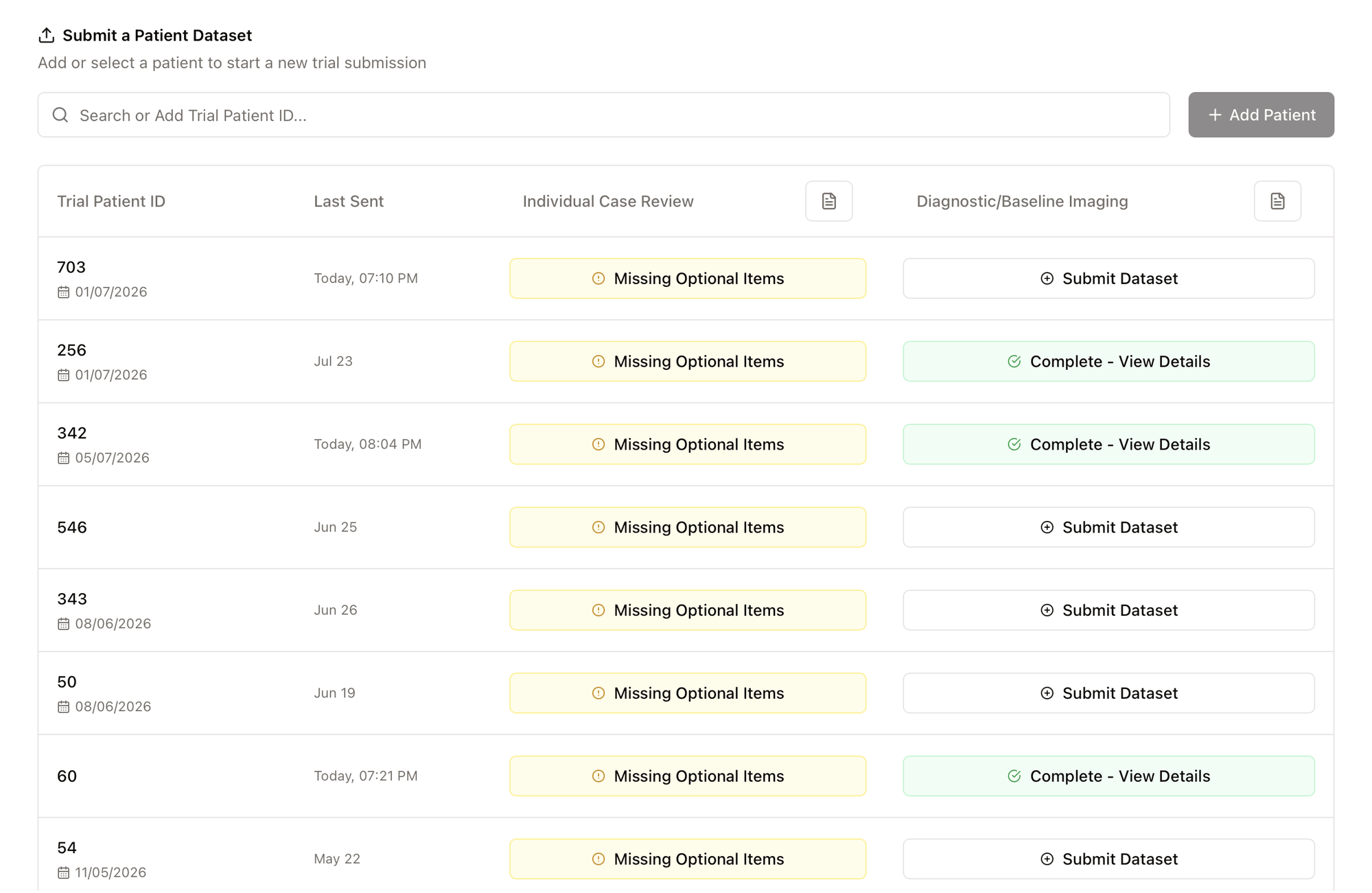
Verifying the submission is the final step of every upload — don’t skip it:- Navigate to the trial homepage in AitriumOS.
- Find the patient in the Submit a Patient Dataset table and confirm the submission registered: the patient’s Last Sent time reflects your upload, and the dataset’s status no longer shows Submit Dataset.
Resubmitting a Dataset
A submission may need to be repeated — for example, when a dataset was incomplete, an upload failed partway through, or the trial team requests a corrected dataset.- Navigate to the trial homepage in AitriumOS and locate the patient in the Submit a Patient Dataset table.
- The dataset’s action button reflects what is needed:
- Complete Required Items — the dataset is missing required items; provide them to finish the original submission.
- Resubmit Dataset — the dataset should be submitted again; selecting it restarts the submission flow for that patient.
- Prepare the corrected dataset and proceed through the same validation, standardization, de-identification, and review steps as the original submission.
Do not add the patient again. Resubmit from the patient’s existing row — never re-enter the Trial Patient ID as a new patient. The resubmission becomes the active dataset the trial team reviews; earlier submissions stay recorded for traceability but are no longer the dataset under review.
Best Practices
Prepare Your Data
Prepare Your Data
- Ensure that all supplementary non-DICOM files have been pseudonymized.
- Ensure that DICOM images do not have burned-in pixels with personally-identifiable information.
- Ensure all trial required DICOM data is available for submission
Review Validation Results
Review Validation Results
- Review the completeness status and address data omissions or errors before proceeding.
Troubleshooting Common Issues
Validation Failures
If dataset validation fails:- Check the Analysis Result’s Data Errors tab. The DICOM data provided may be corrupted.
- Check that all trial specific required DICOM data and series are present in the selected folder for upload
Structure Standardization Issues
For RT structure problems:- Confirm RTSTRUCT files are properly linked to image series
- Check that structure names can be mapped to trial standards
- Review the standardization mapping table
Upload Errors
If uploads fail:- Verify your internet connection stability
- Confirm your institution’s firewall permits the outbound transfer connection — see Before You Begin
- Check available disk space
- Ensure you have proper trial permissions
- Contact support if issues persist
Upload finished but the dataset doesn’t show as submitted
If the upload completed but the patient’s row on the trial page doesn’t reflect it — the Last Sent time has not updated, or the dataset still shows Submit Dataset — the application was most likely closed before the submission finished registering. The trial team received the files, but no notification was sent and the submission was not recorded. To resolve:- Run the submission again for that patient from the Submit a Patient Dataset table, exactly as you did the first time. The trial team can disregard the duplicate file.
- If the dataset still does not show as submitted, contact [email protected] with your trial ID and patient ID.
Need Help?
If you encounter any issues during the submission process:- Review the error messages carefully
- Consult the trial-specific requirements documentation
- Contact support at [email protected]