

For:Site IT
AitriumOS connects through your organization’s HTTP proxy to reach its HTTPS services. It supports proxies with no authentication, Windows Integrated Authentication (NTLMv2/Negotiate), and Basic authentication.
Version covered: AitriumOS 2.2.5 for Windows. If you use an earlier version, update before following this guide.
Configure the proxy
Select the setup that matches your Windows configuration:Windows manual proxy
- In Windows Settings → Network & internet → Proxy → Manual proxy setup, enable your approved proxy address and port. If already configured, leave it in place.
- Fully exit AitriumOS, including any tray process, and launch it again.
- Open Settings → Network in AitriumOS. Confirm Connection: Hospital network and the expected Detected network, then select Test connection.
Existing
HTTPS_PROXY or ALL_PROXY environment variables can override detection of the Windows manual proxy. Review any previous test or deployment overrides if the detected address is unexpected.PAC or WPAD
From AitriumOS 2.2.5, automatic proxy configuration is honoured by background connections. Earlier versions applied the PAC/WPAD policy only to the Windows sign-in component (WebView2) and sent every background connection direct, which could bypass the proxy without any visible error. AitriumOS now asks Windows itself — the same WinHTTP resolver the operating system uses — which proxy applies to each Aitrium destination. It readsAutoConfigURL and the Automatically detect settings policy for the Windows user running the application, evaluates your own PAC script, and honours a DIRECT result per destination.
- Keep the Windows PAC/WPAD policy enabled. No proxy environment variable is required.
- Confirm the script returns an approved proxy (or a deliberate
DIRECT) for every required Aitrium HTTPS destination. See the destination allowlist. - Fully exit AitriumOS, including any tray process, and launch it again. The policy is read at startup.
- Open Settings → Network in AitriumOS. Detected network names both the proxy address and how it was discovered —
PAC urlorWPAD auto-detect. Then select Test connection.
AitriumOS re-checks the destination’s proxy every few minutes, so a PAC change takes effect without a restart. If the script was unreachable when AitriumOS started, Try again or Test connection re-reads it immediately once it is back. Changing between having and not having a policy at all does require a restart.
When an explicit address is still recommended
Automatic discovery removes the need for an environment variable in most deployments. Configure an explicitHTTPS_PROXY instead when any of the following apply:
- Your PAC script returns several proxies with failover semantics. AitriumOS uses the first usable entry the script returns and does not fail over to the alternatives, so a deployment that depends on failover should name the proxy you want explicitly.
- The proxy policy is applied per machine by a tool the user session cannot read — for example a group policy or management agent that configures the service account or the machine store rather than the signed-in user’s Internet Settings. AitriumOS reads the policy for the Windows user running the application, so a policy that account cannot see will not be discovered.
- Your site requires all traffic pinned to one audited proxy. An explicit address fixes the route for every background connection regardless of what the script returns or how the network changes, which is easier to evidence in a security review.
- You are troubleshooting an absent Detected network. If Settings → Network shows no Detected network while Windows does have a proxy policy, setting the address explicitly confirms whether the problem is discovery or the proxy itself — and restores correct routing immediately while you investigate.
- The PAC script is hosted on a slow or intermittently reachable server. While the script cannot be evaluated, AitriumOS sends its background connections direct, shows a Proxy configuration unavailable notice, and retries automatically. On a network that blocks direct traffic, those connections fail until the script is reachable again. An explicit address removes that dependency.
Using an existing managed HTTPS_PROXY setting
Using an existing managed HTTPS_PROXY setting
You can retain an approved
HTTPS_PROXY deployment. It takes precedence over Windows manual-proxy detection for background connections. Keep the Windows system proxy policy configured for WebView2 sign-in traffic as well.Use a machine-level setting for shared workstations; a per-user setting applies only to that account. After changing it, sign out and back in before launching AitriumOS.Network access requirements
- Permit the required HTTPS destinations through the proxy. See the destination allowlist.
- If your proxy performs TLS inspection, install your organization’s inspection CA in the Windows certificate store according to your policy.
- Permit trial-specific SFTP/FTP connections separately. See SFTP transfers bypass the proxy.
SFTP transfers bypass the proxy
On a network that blocks direct outbound traffic, add a firewall exception for the trial’s SFTP host and port, and allow the AitriumOS programNewLeaf.exe rather than only the port. The host and port are listed in Settings → Network → Upload destinations, where Check now confirms the connection. See transfer destinations and Upload connection troubleshooting.
Authentication and credential protection
AitriumOS first tries the proxy without credentials. If authentication is required, it attempts Windows sign-in, then a saved network credential. If neither succeeds, it presents the network sign-in form.
Network credentials are separate from the user’s Aitrium account. NTLMv1 has not been validated and is not recommended.
When Windows sign-in succeeds, AitriumOS stores no additional network password. User-entered passwords are protected at rest with Windows DPAPI in the current user’s context and are excluded from application logs and support bundles. Forget sign-in removes the saved credential. A rejected saved password is marked invalid so AitriumOS does not repeatedly retry it.
What users will see
Which screens appear depends on your network configuration. These Windows screenshots use a local test proxy;127.0.0.1:8888 is an example, not an address to configure at your site.
Automatic connection
If the proxy accepts the current Windows sign-in, AitriumOS connects without asking for another password. The header displays Hospital network, and Settings → Network shows Sign-in: Windows sign-in. A proxy that does not require authentication also connects without a sign-in form. Check Connection and Detected network in Network settings to see the configured route; the authenticated Hospital network header indicator may not appear for this connection.Hospital-network sign-in requested
When it appears: The proxy requires credentials and automatic authentication has not completed successfully. The screen is titled Connect through your hospital network and explains why another sign-in is needed. Enter the hospital-network username and password specified by your IT team, then select Connect to Aitrium. These may differ from your Aitrium account credentials. You can select Continue with local tools while your IT team helps resolve access.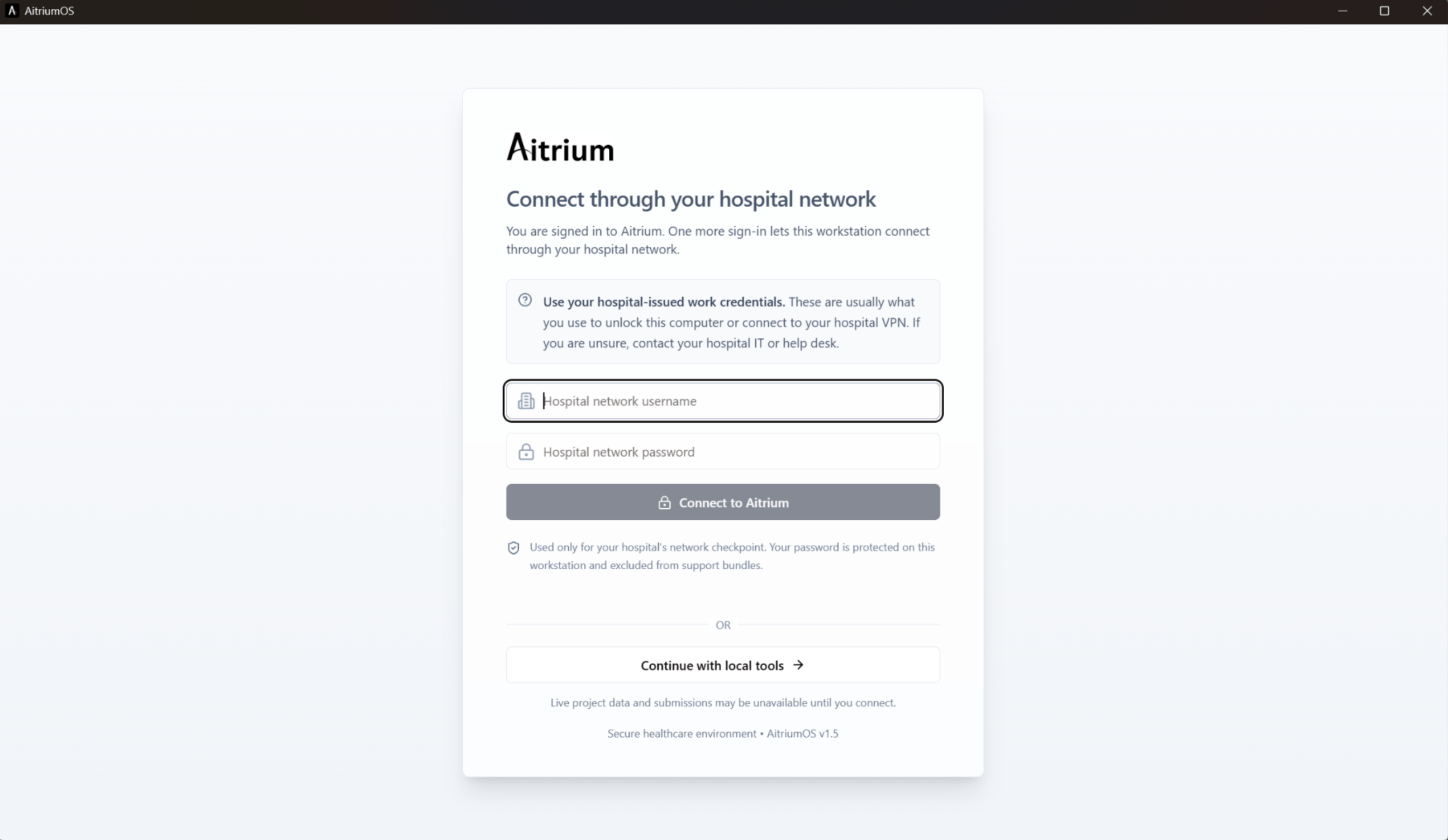
Hospital-network sign-in. The footer has an outdated version label; check the application header for the installed version.
Credentials rejected or no longer accepted
When it appears: A connection attempt using the entered credentials did not succeed. The form displays We couldn’t verify these details and allows another attempt. If a saved credential has been rejected, the title changes to Update your hospital network sign-in, with an Update and reconnect button. Enter your current work password or ask IT to confirm your account’s proxy access. This message alone does not establish that a password has expired.Continuing with local tools
When it appears: You choose to continue while network sign-in remains unresolved. The application opens with Network sign-in needed in the header and a persistent Hospital network sign-in needed banner. Local tools remain available. Previously loaded project information may still be visible, but live refreshes and submissions may fail until you reconnect.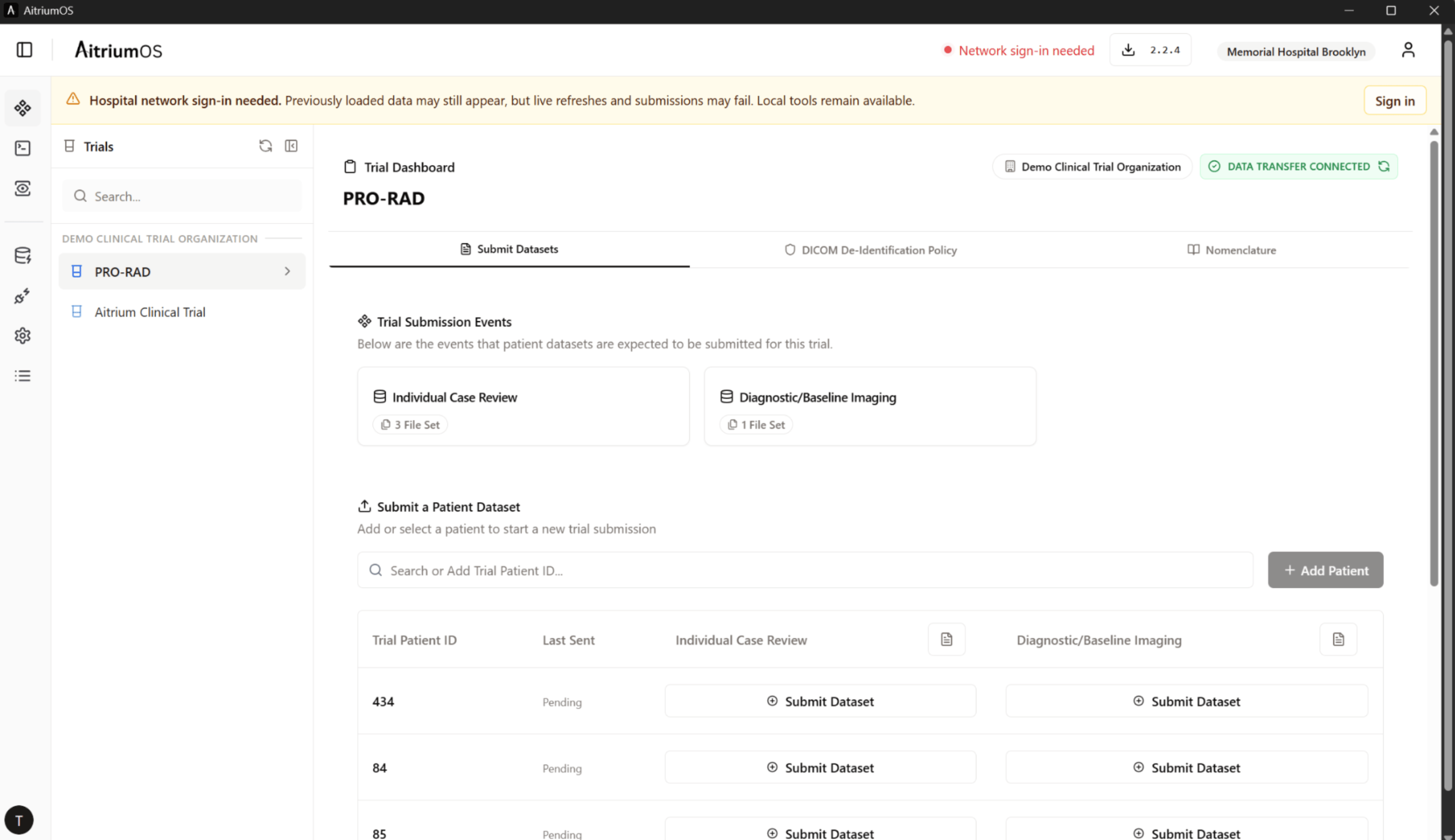
The network warning remains visible while previously loaded project information is on screen. A separate data-transfer status does not confirm access to Aitrium services.
Use Settings → Network → Test connection to check live connectivity. Previously loaded data and separate transfer connections can remain visible while access to Aitrium services is unavailable.
Reconnecting from the current page
Select Sign in on the banner to open the hospital-network sign-in dialog without leaving the page. You can also select the header’s Network sign-in needed indicator and choose Sign in or Network settings.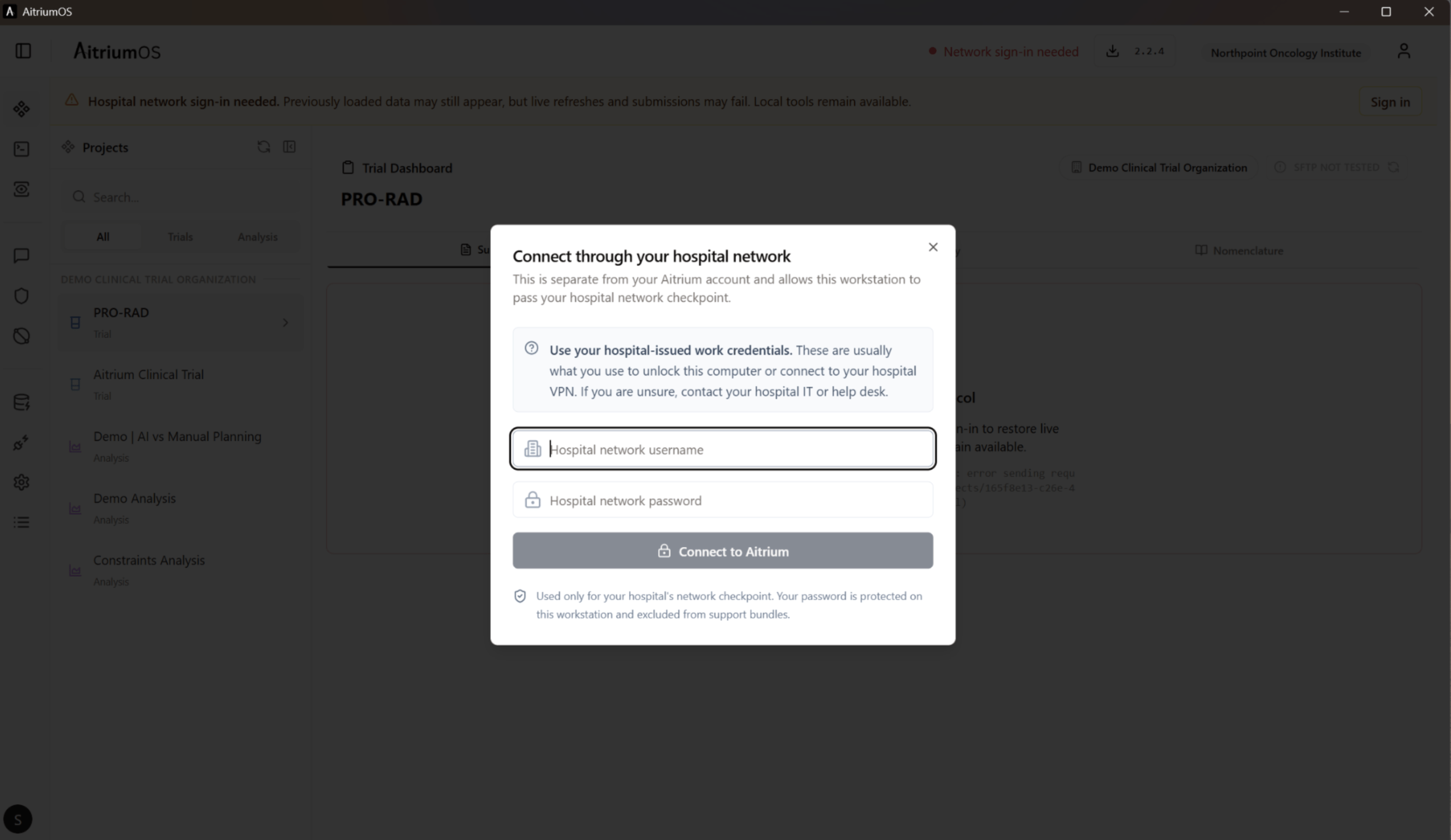
Sign in to reconnect without leaving the current page.
Reviewing or removing a saved sign-in
Open Settings → Network to review the connection: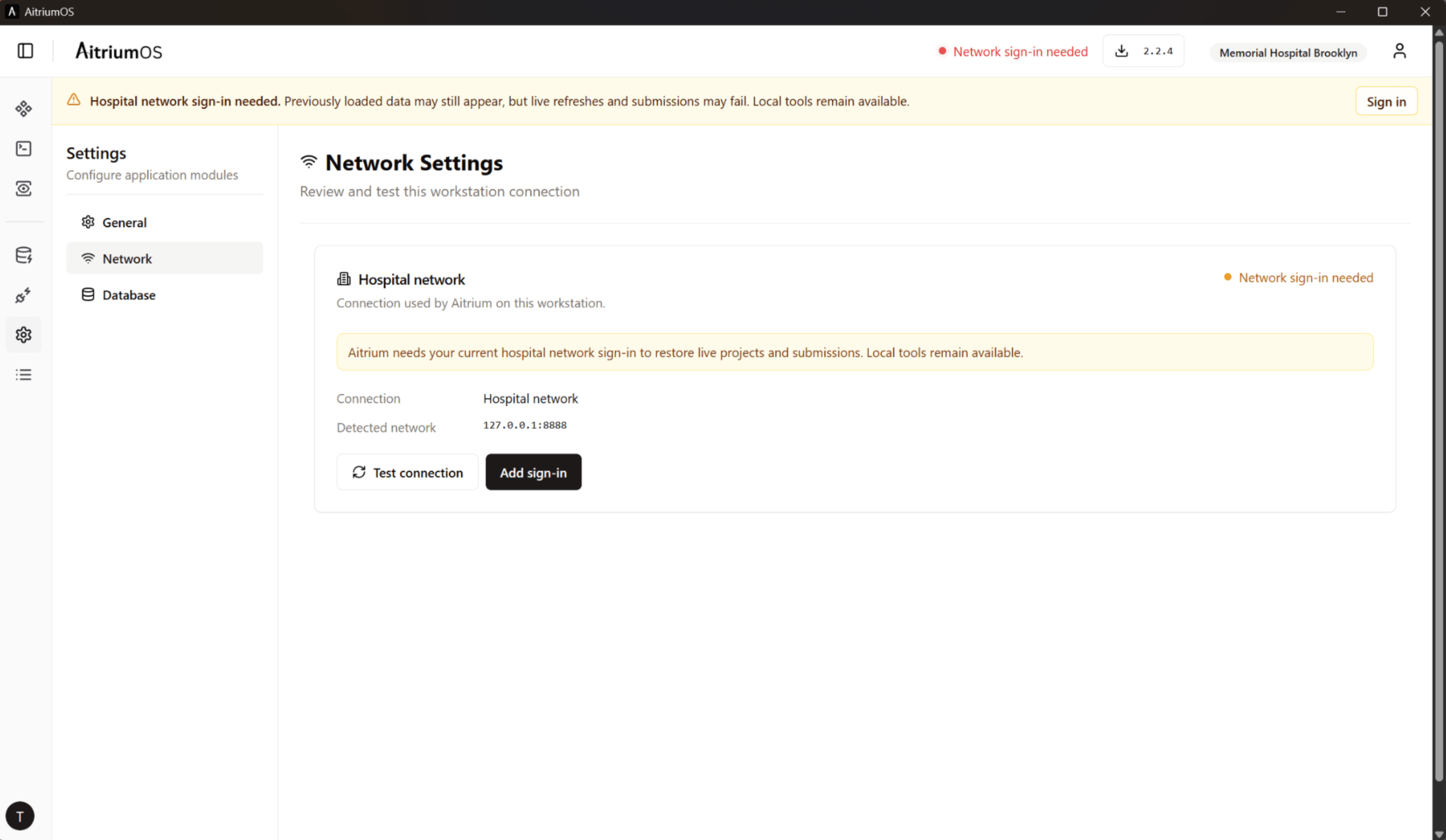
Network settings shows the detected proxy and an Add sign-in action when authentication is needed.
Removing a saved sign-in does not sign you out of Aitrium or Windows, and does not change the workstation’s proxy configuration. Windows may still authenticate automatically, or existing proxy sessions may remain usable. If another sign-in is required, AitriumOS presents the same recovery flow described above.
Other connection messages
Windows may also display a proxy sign-in prompt alongside the AitriumOS form. Follow your IT team’s guidance for the expected proxy.
After correcting a connection issue, use Try again or Test connection to recheck it. If IT changes the proxy address or configuration, fully exit and reopen AitriumOS to pick up the new route.
Acceptance Test
Follow these steps on a managed Windows workstation using your organization’s intended proxy policy.1
Confirm the route
Configure the proxy, fully exit AitriumOS, and reopen it. Sign in to your Aitrium account.
2
Authenticate if requested
If Connect through your hospital network appears, sign in with an account approved by your IT team for testing.
3
Check Network settings
Open Settings → Network and confirm:
- Connection is Hospital network.
- Detected network shows the expected proxy host and port.
- Test connection reports success.
4
Check online features
Confirm that projects and integration status refresh and the application update check succeeds. In Settings → Network → Upload destinations, select Check now for each trial’s SFTP server and confirm it shows Reachable; then confirm a test submission reaches its configured destination.
5
Verify network policy
With your intended firewall restrictions active, confirm in proxy or firewall logs that Aitrium HTTPS traffic uses the approved proxy. If a temporary direct-HTTPS exception was granted, disable it for this test while retaining required SFTP/FTP access.
6
Test removal and recovery
If a separate credential was saved, select Forget sign-in and reconnect when prompted. Confirm that warnings clear and project and integration information refresh. Windows authentication or an existing proxy session may keep the connection working after the saved credential is removed.
7
Check sign-in after restarting
Fully exit and reopen AitriumOS. Confirm that Windows authentication or the saved network sign-in restores connectivity as expected.
Troubleshooting
Network settings shows Connection: Direct
- Confirm the proxy was enabled before AitriumOS started.
- Fully exit AitriumOS, including any background or tray process, and reopen it.
- Confirm the proxy is configured for the same Windows user running AitriumOS.
- For Use setup script or Automatically detect settings, follow PAC or WPAD.
The connection fails without showing network sign-in
The proxy may be unreachable, may be closing the connection without a standard407 response, or may be advertising an unsupported authentication scheme. Check the response in your proxy logs for the status code and authentication scheme names. You do not need to share raw authentication headers for initial troubleshooting.
A saved password stopped working
Open Settings → Network → Change sign-in and enter the user’s current network password. AitriumOS deliberately avoids repeated attempts with a rejected saved password to reduce the risk of account lockout.TLS or certificate errors occur
If your organization performs TLS inspection, ensure its root CA is installed in the Windows certificate store according to your workstation policy.Contact support
Contact [email protected] with:- Your AitriumOS version and Windows domain/join status
- The proxy configuration method: manual, PAC, or WPAD; whether one fixed proxy can be used
- The proxy product, authentication method, and whether TLS inspection is enabled, if known
- Which Acceptance Test steps passed or failed and any redacted application error message