

For:Site users
Overview
Submitting to an EORTC trial? Follow EORTC Data Submission instead. This guide covers all other trials.
Step-by-Step Walkthrough
Add Patient Regimen
Before submitting data, each patient must be configured with their treatment details. Open the Patient Configuration modal from the trial’s patient list.Setup Checklist
The modal presents three required fields:- Randomization Date — When the patient was enrolled in the trial
- Study Arm — Which treatment arm the patient is assigned to
- Patient Regimens — One or more treatment regimens with start dates
Status indicators show configuration progress: green = complete, amber = required field missing, lock icon = managed by trial manager (read-only).
Adding a Regimen
- Select a Study Arm from the dropdown — this filters the available regimens
- Choose a regimen from the searchable dropdown, which displays:
- Regimen name
- Number of fractions
- Dose range (min–max Gy or single target dose)
- Enter a Treatment Start Date (required), and optionally a Treatment End Date
- To add multiple regimens, queue them and click Save N Regimens to save in batch
Regimens already assigned to the patient are disabled in the dropdown to prevent duplicates.
Submit Scheduled Datasets
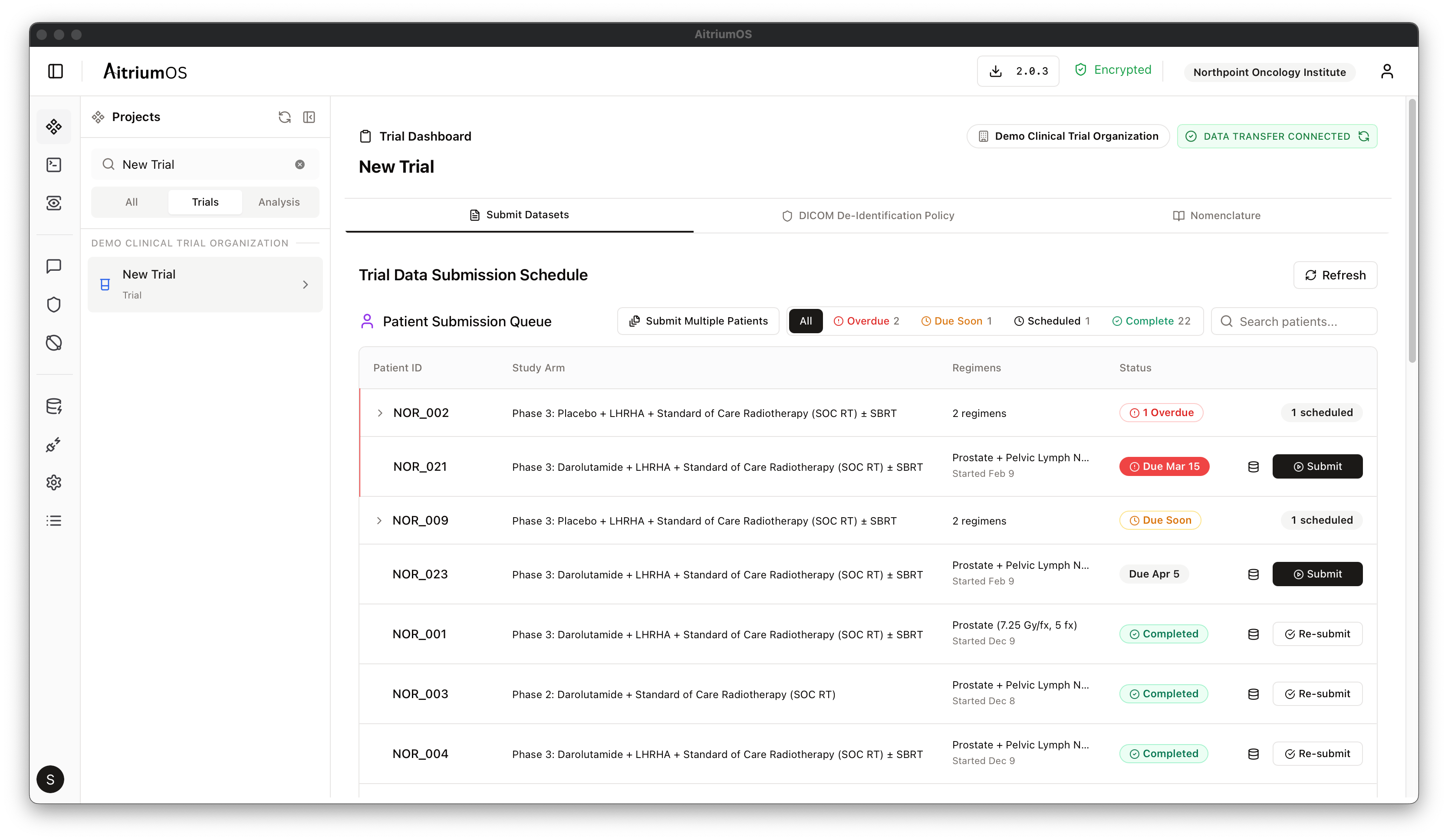
The Patient Submission Queue in the Trial Data Submission Schedule displays all pending data submissions for the trial:- Site-level submissions appear at the top of the queue
- Patient-level submissions are grouped by patient below
- Status badge — OVERDUE, SCHEDULED, or COMPLETED
- Due date — When the data is expected
- Event name — The data collection event (e.g., “Baseline CT”, “Fraction 1”)
- Associated datasets — What data types are required
Submission Flow
The submission flow consists of five sequential steps. Each step must complete successfully before proceeding to the next.1. Dataset Analysis
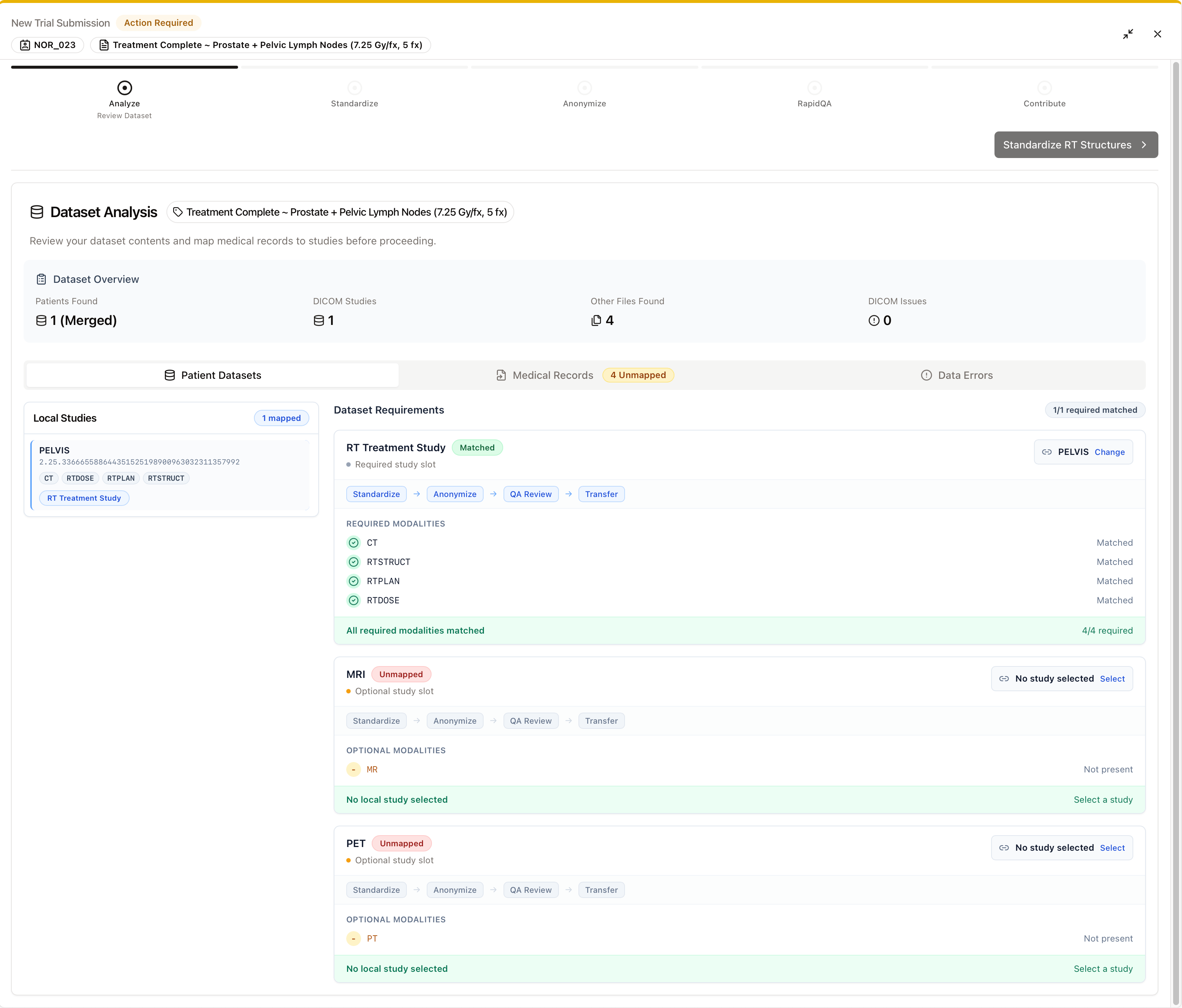
Select the local directory containing the patient’s DICOM data. The Dataset Analyzer scans the directory and produces:- DICOM file inventory — Patient, Study, and Series structure
- Modality breakdown — CT, MR, RTSTRUCT, RTPLAN, RTDOSE, and other modalities detected
- Protocol validation — Checks data against the trial’s specific requirements
- Missing data warnings — Color-coded indicators for gaps:
- Red: required data missing
- Amber: optional data missing
2. RT Structure Standardization
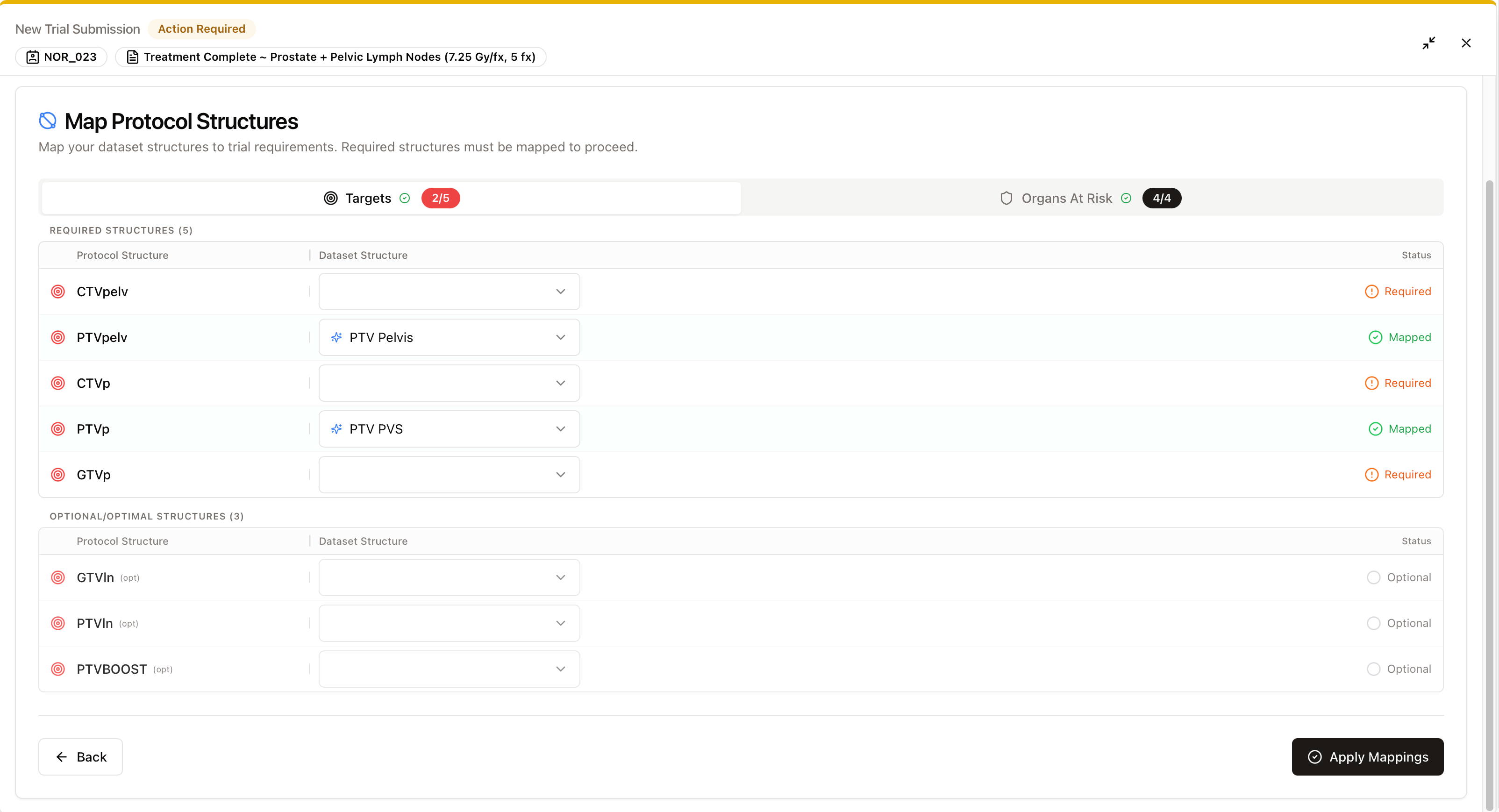
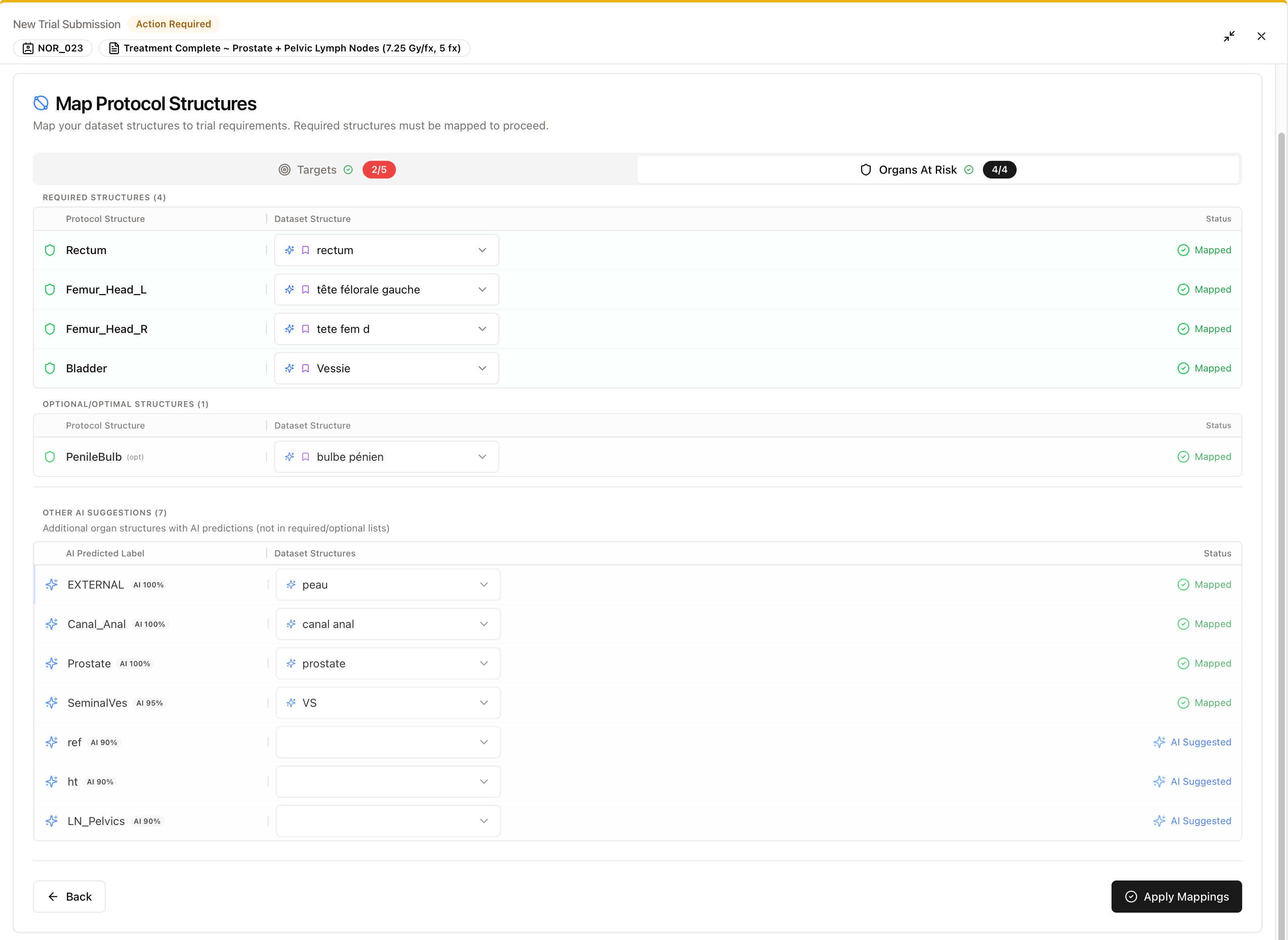
This step runs automatically when RTSTRUCT files are present in the dataset. If no RT structures exist, this step is skipped.
- Left column — Your original structure names
- Right column — Standardized / trial-required names (editable via searchable dropdown)
3. DICOM Metadata De-identification
This step protects patient privacy by removing or replacing personally identifiable information (PII) from DICOM metadata according to the trial’s assigned de-identification policy. The process has three sub-phases:- Pre-anonymization validation — Checks whether the data already meets the trial’s de-identification policy requirements
- De-identification — Removes or replaces PII fields (patient name, patient ID, dates, and other identifying metadata) per the trial’s policy. A progress bar tracks the operation.
- Post-anonymization validation — Confirms the anonymized files meet all policy requirements before proceeding
4. QA Policy Evaluation
This step only appears if the protocol has a QA policy assigned. If no QA policy is configured, the flow proceeds directly to Data Transfer.
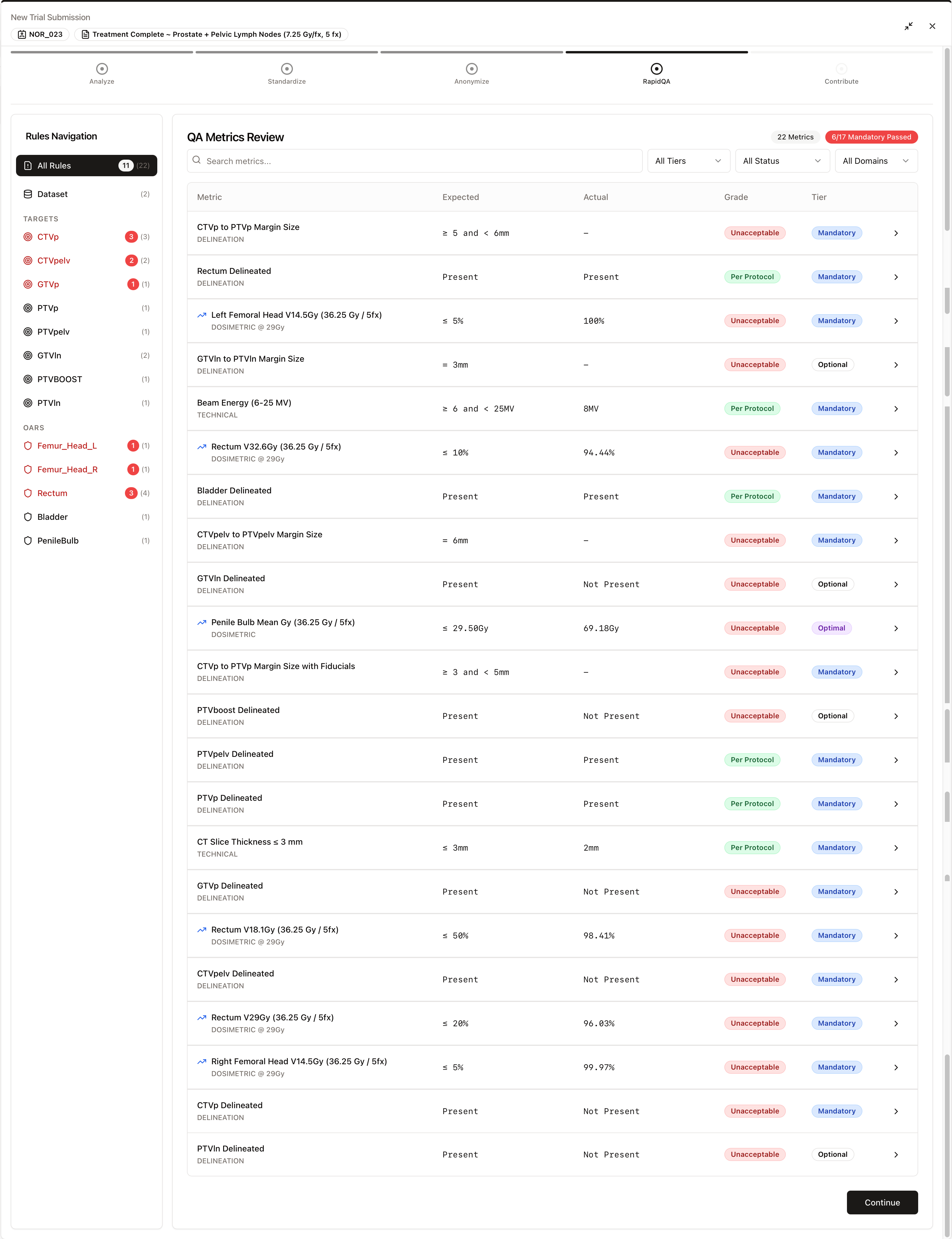
- Extract QA Facts — The system identifies the best RT study pair (RTSTRUCT + RTDOSE), computes DVH metrics, and evaluates them against the protocol’s policy constraints. A progress bar is shown with status updates.
-
Review QA Metrics — A table displays the extracted metrics (e.g., D95, D5, Dmean, Dmax, Dmin, V100%) with color-coded results:
- Green — Within acceptable range (Per Protocol)
- Amber — Acceptable variation
- Red — Unacceptable deviation
- Click Continue
5. Data Transfer
The final step uploads the processed dataset to the trial’s configured destination.-
Pre-submission review — Verify the summary of what will be submitted:
- Patient ID and Site ID
- Number of DICOM series grouped by modality
- Integration destination
- Anonymization status confirmation
- QA status confirmation (if applicable)
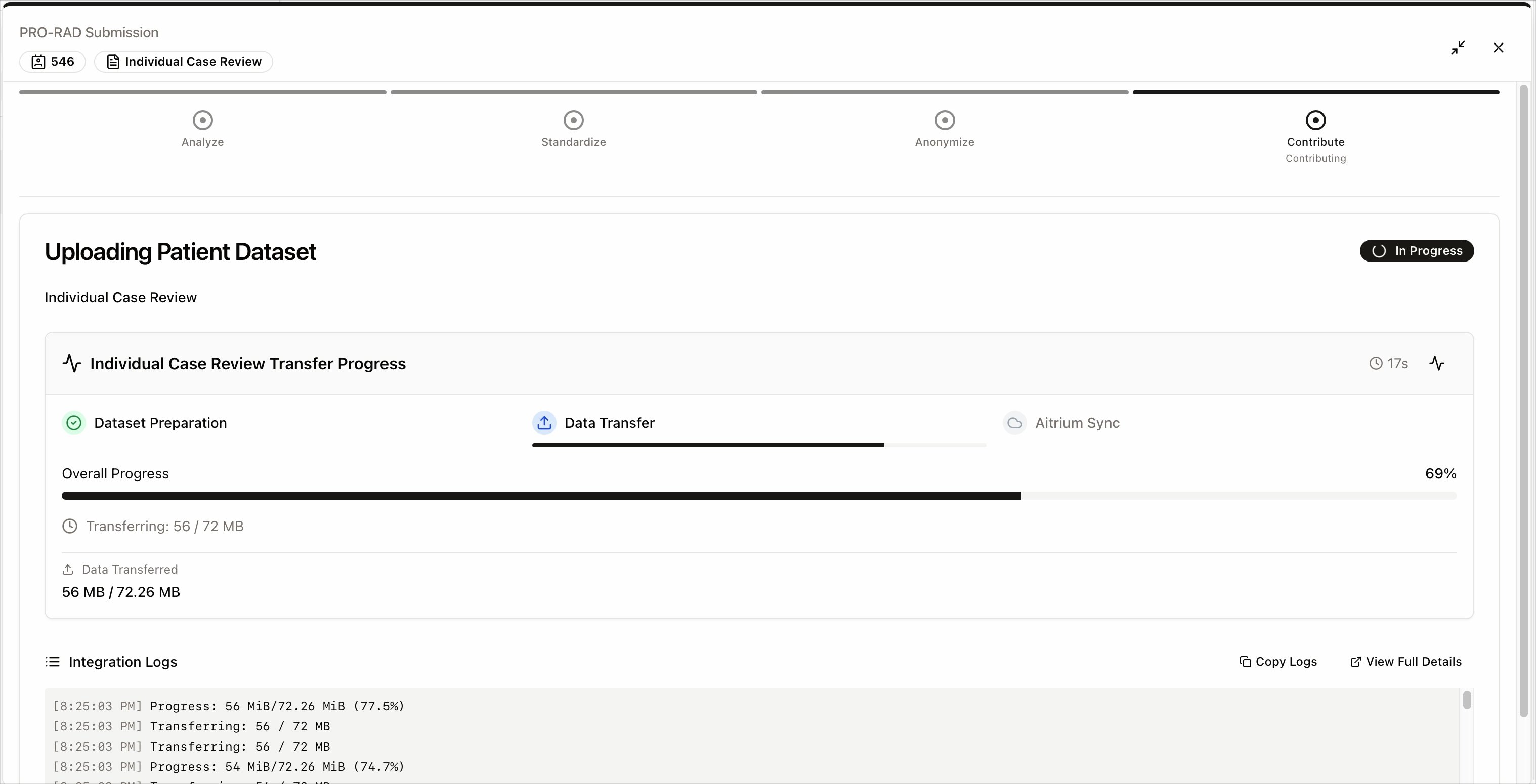
- Upload — The upload runs in two parts, shown on the transfer progress card: Data Transfer uploads the files to the trial’s configured destination with real-time progress tracking, then Aitrium Sync registers the submission with Aitrium — recording it for the trial and notifying the trial team
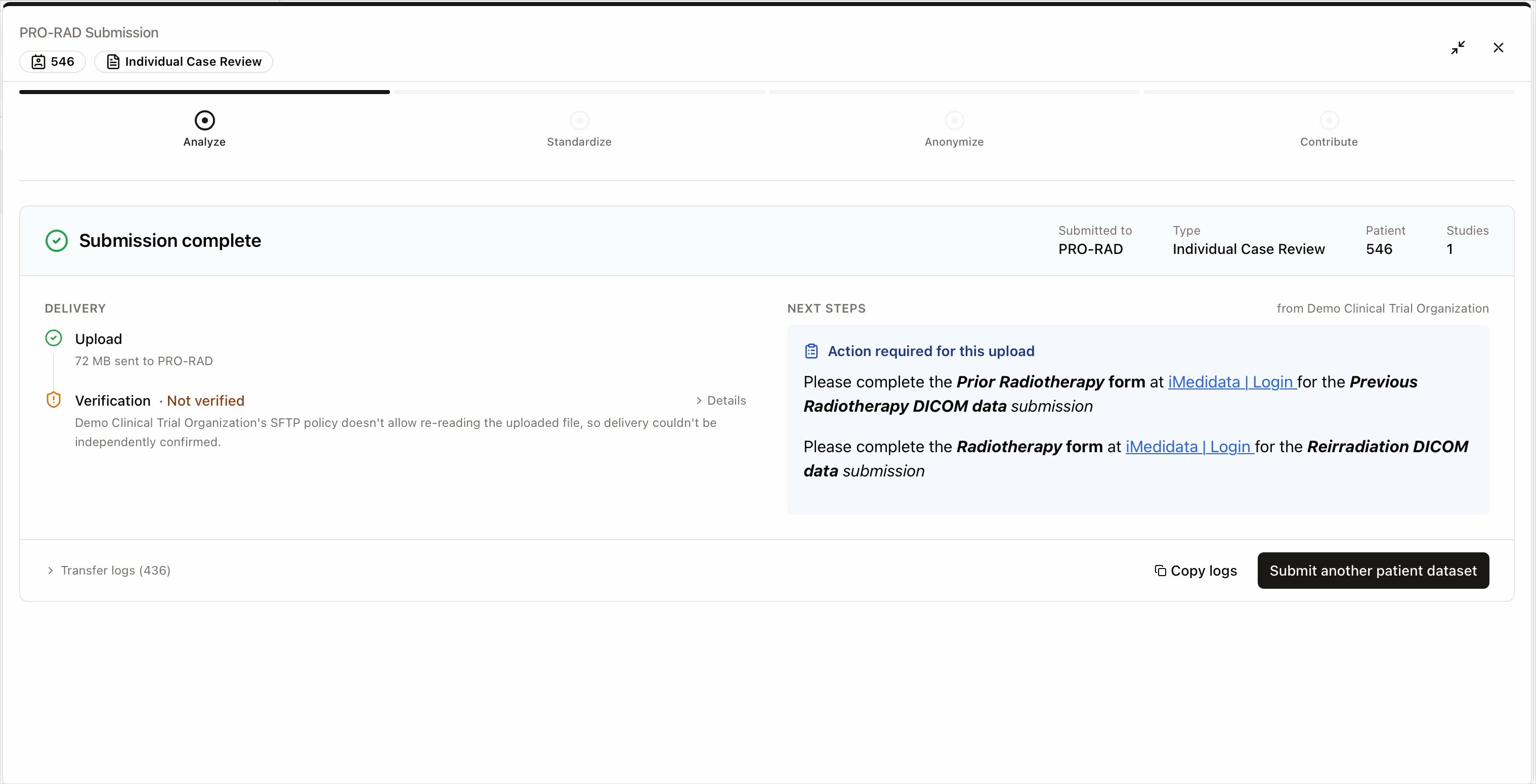
- Success — The Submission complete screen displays transfer details and provides the option to submit another patient dataset
Monitoring Submission Status
Verifying the submission is the final step of every upload — don’t skip it:- Navigate to the trial in AitriumOS
- Find the patient’s event in the Patient Submission Queue and confirm its status shows Completed
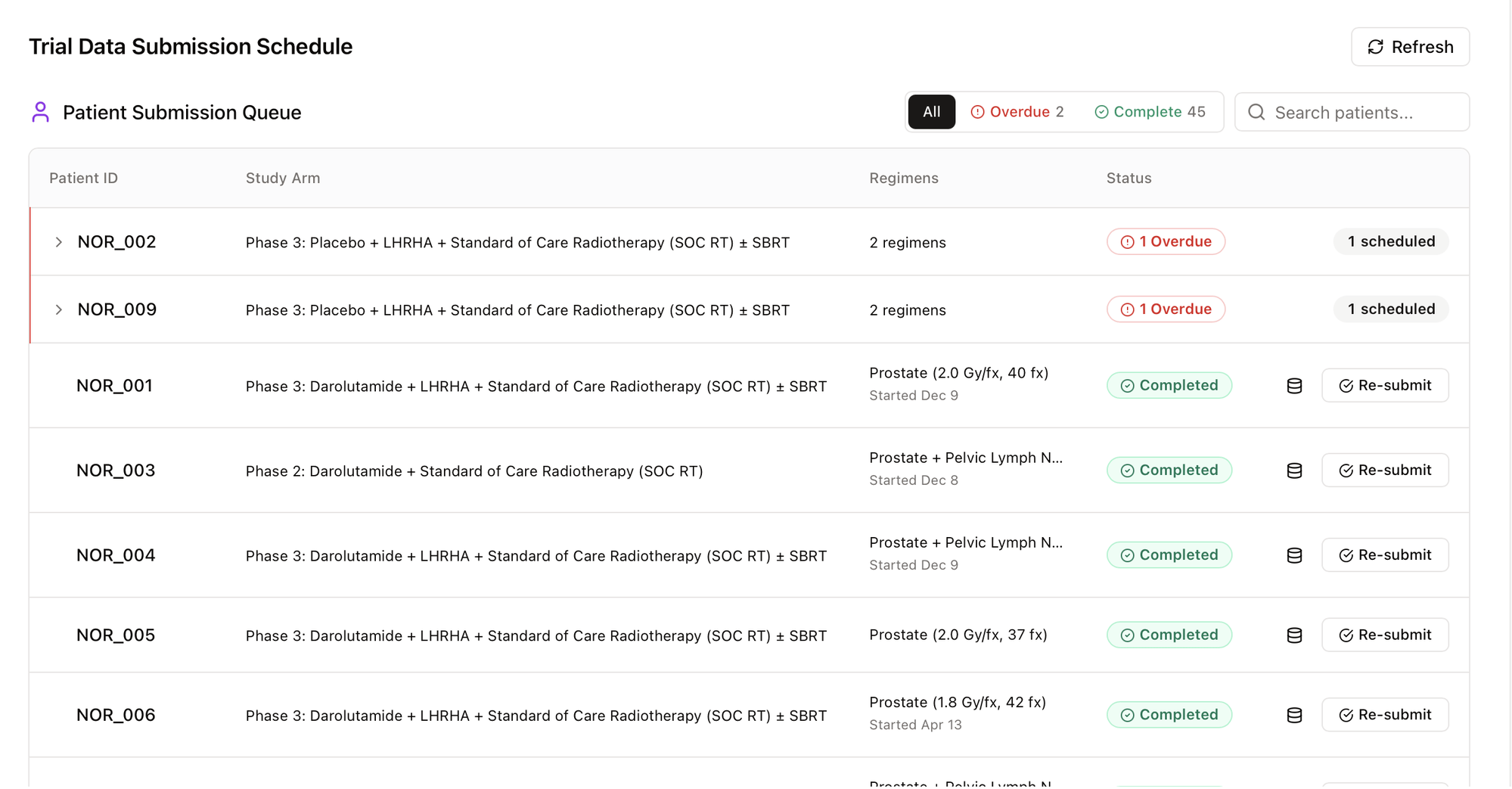
- Pending Dates — Waiting for anchor dates (e.g., randomization date not yet set)
- Scheduled — Dates calculated, awaiting data submission
- In Progress — Submission started
- Completed — Data successfully submitted
- Overdue — Past the collection window end date
Resubmitting a Dataset
A submission may need to be repeated — for example, when a dataset was incomplete, an upload failed partway through, or the trial team requests a corrected dataset.- Navigate to the trial in AitriumOS and locate the patient’s event in the Patient Submission Queue.
- The submission’s action button reflects what is needed:
- Complete Required Items — the dataset is missing required items; provide them to finish the original submission.
- Re-submit — the dataset should be submitted again; selecting it restarts the submission flow for that event.
- Prepare the corrected dataset and proceed through the same analysis, standardization, de-identification, QA evaluation, and transfer steps as the original submission.
Best Practices
Prepare Your Data
Prepare Your Data
- Ensure all trial-required DICOM data is available in a single directory for submission
- Verify that supplementary non-DICOM files have been pseudonymized
- Confirm that DICOM images do not contain burned-in pixels with personally identifiable information
Configure Patients Early
Configure Patients Early
- Set randomization dates and regimen start dates promptly after enrollment
- This ensures scheduled submissions are generated with correct due dates
- Review the Patient Submission Queue to confirm expected events appear
Review QA Results Carefully
Review QA Results Carefully
- Address any unacceptable deviations (red indicators) before acknowledging
- Contact the trial coordinator if you are unsure whether a variation is acceptable
- Use manual entry to supplement metrics the system could not extract automatically
Troubleshooting Common Issues
Dataset Analysis Failures
If dataset analysis fails:- Check the Data Errors tab for details — the DICOM data may be corrupted
- Verify all trial-required DICOM data and series are present in the selected directory
- Ensure the directory is accessible and not locked by another application
RT Structure Standardization Issues
For RT structure mapping problems:- Confirm RTSTRUCT files are properly linked to their image series
- Check that structure names can be mapped to the trial’s required nomenclature
- Use the searchable dropdown to manually assign mappings for unrecognized names
De-identification Errors
If de-identification fails:- Check available disk space — the process creates anonymized copies of all files
- Verify file permissions on the source directory
- Use the Retry button to attempt again, or Select New Directory to start over
QA Metric Extraction Issues
If QA facts cannot be extracted:- Verify that both RTSTRUCT and RTDOSE files are present and properly linked
- Check that structure names have been correctly standardized in the previous step
- Use manual entry to provide metrics that could not be computed automatically
Upload Errors
If data transfer fails:- Verify your internet connection stability
- Confirm your institution’s firewall permits the outbound transfer connection — see Before You Begin
- Check that the trial’s integration is properly configured (contact your trial administrator)
- Ensure you have proper trial upload permissions
- Contact support if issues persist
Upload finished but the event doesn’t show as Completed
If the upload completed but the patient’s event still has not moved to Completed in the Patient Submission Queue, the application was most likely closed before the submission finished registering. The trial team received the files, but no notification was sent and the submission was not recorded. To resolve:- Run the submission again for that event from the Patient Submission Queue, exactly as you did the first time. The trial team can disregard the duplicate file.
- If the event still does not show as Completed, contact [email protected] with your trial ID and patient ID.
Need Help?
If you encounter any issues during the submission process:- Review the error messages carefully for specific guidance
- Consult the trial-specific requirements documentation
- Contact support at [email protected]