

For:Site users (EORTC and RTQA trials)
Documents reach a trial in one of two ways:
- A documents-only submission: a dataset type (EORTC trials) or an event (RTQA trials) that asks only for documents.
- Supporting documents in an imaging submission: documents sent with a patient’s images (EORTC trials).
Documents-only submissions
Start it the same way as any submission:- EORTC trials: select Submit Dataset under the dataset type in the patient’s row.
- RTQA trials: select Submit on the event in the Patient Submission Queue.
Add files
The screen opens with this notice:Aitrium does not remove patient information from documents. Before you add files, remove names, dates of birth, hospital numbers, QR codes and barcodes, and other identifiers, including from file names and hidden document details such as author, comments and tracked changes.Each document the trial asks for has its own card, with the formats it accepts (or Any file type) and a Required badge where it applies. Select Add files on a card to add files to it.
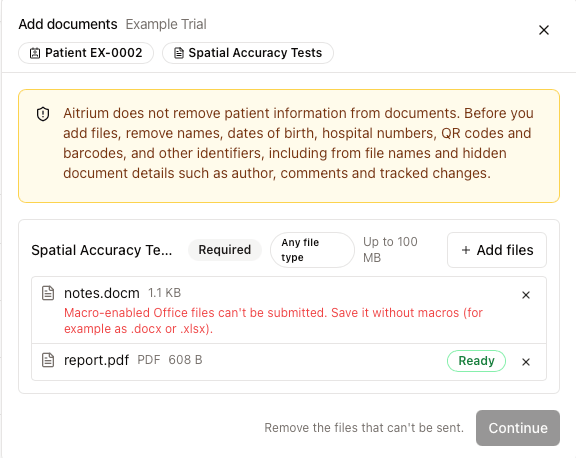
- “This looks like a DICOM file. Submit imaging through an imaging submission.”
- “Programs and scripts can’t be submitted.”
- “Macro-enabled Office files can’t be submitted. Save it without macros (for example as .docx or .xlsx).”
- “This format isn’t accepted here. Accepted: …”
- “You already added this file.” or “This file is empty.”
Confirm and send
- Read the confirmation statement for this submission type and select its checkbox. If you change the files, select it again.
- Select Submit.
- Check the summary (Submitting for, Trial, Destination, Files), then select Submit documents.
If a documents send is interrupted
AitriumOS never sends the same files twice.- Check delivery and continue: an earlier attempt didn’t finish. AitriumOS checks the destination first, then finishes the send.
- Retry recording: “Your files were delivered, but Aitrium couldn’t record the submission yet.” Retrying records it without sending the files again.
- “Document submission isn’t available for this site’s transfer method. Contact Aitrium support.” Your site’s upload method can’t send documents yet. Contact [email protected].
Supporting documents in an imaging submission
This applies to EORTC dataset types that name documents (for example a surgical report). Put the documents in the patient’s folder with the images. On the analyzer, Supporting documents lists each document the dataset type names, marked Required or Optional.- For each document, select Choose a file and pick the matching file from the folder. Use Add another file if one document spans several files.
- Select the checkbox These documents contain no patient identifiers.
