

For:Site users (with a section to forward to Site IT)
AitriumOS updates itself from inside the app. You don’t need to download anything: the update downloads, installs and reopens AitriumOS for you. AitriumOS only offers updates. It never installs one until you start it.
When to update
Update when either of these happens:- The header shows “Update to” and a version number, for example Update to 2.3.5. AitriumOS checks for updates when a session starts and every hour while you’re signed in.
- An upload error or your trial team asks you to update AitriumOS. For example, an upload can fail with The SFTP server’s security settings aren’t supported by this version of AitriumOS. Please update AitriumOS or contact Aitrium support. See Upload connection troubleshooting.
How to update
1
Finish what you're doing
Let any submission in progress finish first. AitriumOS closes while the update installs.
2
Select Update to …
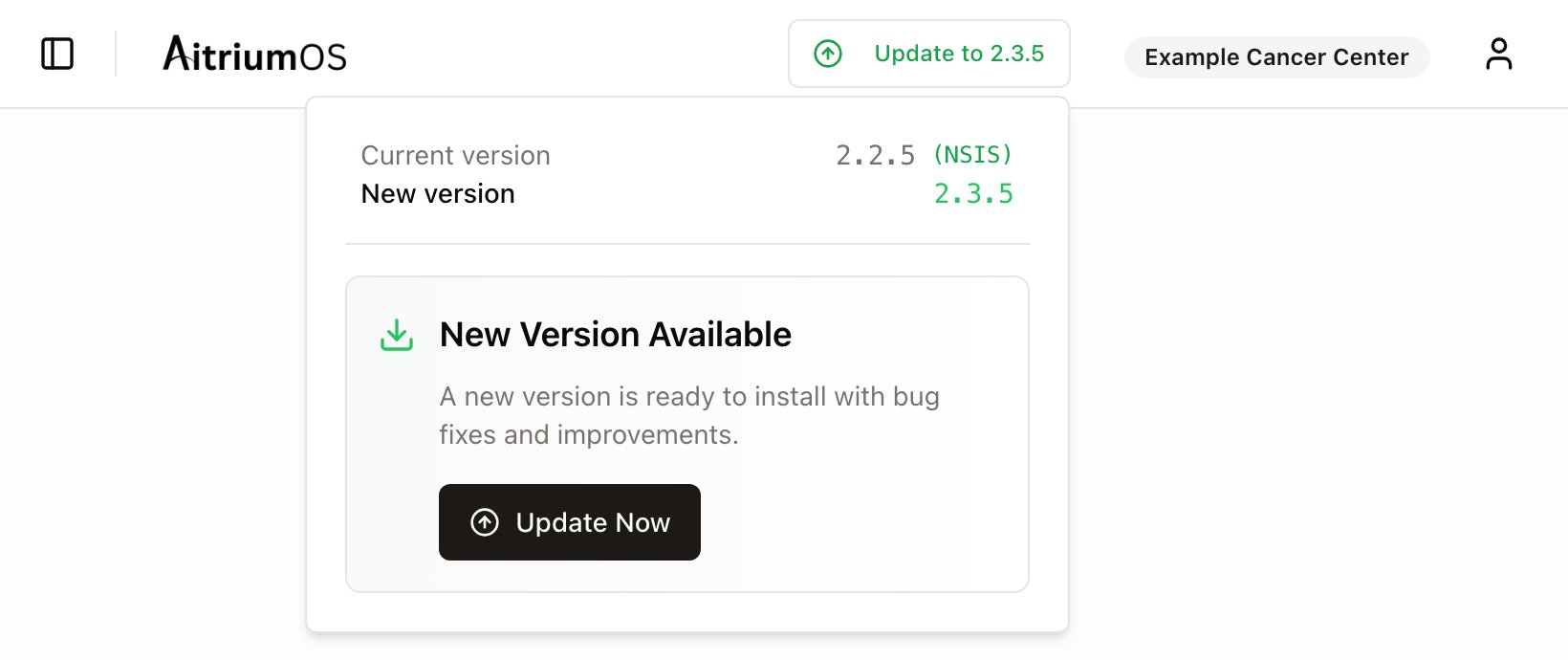
Select Update to and the version number in the header, at the top right of the window. A panel shows your Current version and the New version.
3
Select Update Now
The button shows Downloading… while the update downloads. This can take a few minutes.
4
Let AitriumOS restart
AitriumOS closes, installs the update and reopens by itself. On Windows, a small installer progress window appears for a moment. Sign in again if asked.
If AitriumOS says Please restart the application manually to complete the update. then close AitriumOS and open it again.
Check your version
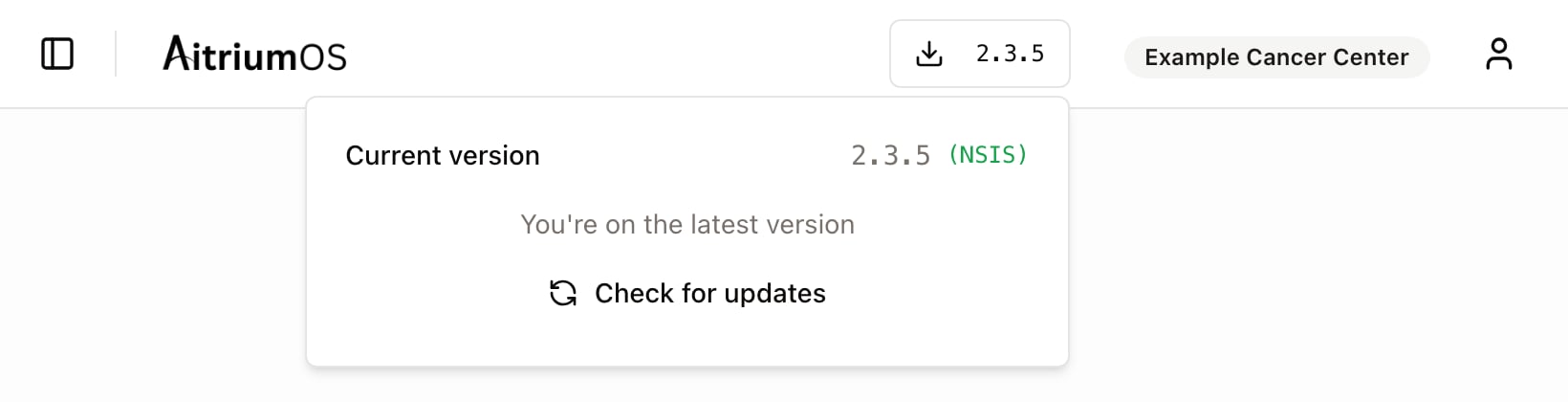
Your version is shown in the header:- When you’re up to date, the header shows the version number, for example 2.3.5. Select it to see Current version and You’re on the latest version.
- When an update is available, the header shows Update to and the new version. Select it to see your Current version.
If the update needs administrator rights or stops
This usually means AitriumOS was installed for the whole computer with the MSI installer, often by your IT team. Updating an MSI install needs administrator rights, so Windows may ask for an administrator’s permission. If you can’t give it, the update stops and your current version stays installed. Open AitriumOS again from the Start menu to keep working. To update an MSI install, ask your IT team to:- Sign in at app.aitriumos.com and open Downloads.
- Download the latest MSI installer and install it on your computer. It replaces the current version, and your settings are kept.
On macOS
The steps are the same: select Update to, then Update Now, and AitriumOS reopens on the new version. The current macOS release is for Macs with Apple Silicon. If your Mac has an Intel processor, contact Aitrium support. If AitriumOS shows Update failed, your Mac account may not be allowed to change the copy of AitriumOS in Applications, for example because another account installed it. Ask someone with administrator rights on the Mac to download the latest version from app.aitriumos.com → Downloads and install it over the existing copy.Other problems
I was told to update, but the header doesn't show “Update to”
I was told to update, but the header doesn't show “Update to”
Select the version number in the header, then Check for updates. If it then shows You’re on the latest version, no update is currently offered. If your version still differs from what you were told, contact Aitrium support.
“Couldn't check for updates”
“Couldn't check for updates”
The last update check didn’t succeed. Select Check for updates to try again. If it keeps failing, contact Aitrium support, or ask IT to install the latest version from Downloads at app.aitriumos.com.
“Update failed”
“Update failed”
The update couldn’t be downloaded or installed. Close and reopen AitriumOS, then try again. If it fails again, contact Aitrium support with the full message.If AitriumOS doesn’t open after a failed update, reinstall the latest version from Downloads at app.aitriumos.com. If AitriumOS was installed with the MSI installer, ask your IT team to install the latest MSI installer.
AitriumOS still shows the old version after updating, or there are two AitriumOS icons
AitriumOS still shows the old version after updating, or there are two AitriumOS icons
The computer probably has two copies of AitriumOS, one from each Windows installer type, and the icon you opened is the copy that wasn’t updated. Check Windows Settings → Installed apps for more than one AitriumOS entry and follow Switching Windows installer types to keep only one.